You have a folder full of files with terrible names. Maybe they came off a camera, a scanner, or a client who thinks "final_final_v3_REAL.pdf" is an acceptable naming convention. You need to rename all of them into something organized. On Mac, you have a few options — but most of them hit a wall surprisingly fast.
If you have ever spent twenty minutes renaming files one at a time in Finder, you already know the pain. And if you have tried Finder's built-in batch rename, you know it covers the basics but leaves you stranded the moment you need real control.
What macOS gives you out of the box
Finder does have a batch rename feature. Select multiple files, right-click, and choose "Rename." You get three modes: replace text, add text, or format (sequential numbering). For simple jobs — adding a prefix or replacing one word — it works. But the limitations show up fast:
- No regex or pattern matching
- No way to remove specific characters by position
- No preview of what the final names will look like before you commit
- No multi-step renaming — you get one operation at a time
- No undo if you make a mistake across hundreds of files
For anything beyond trivial renaming, you need a dedicated tool.
The visual pipeline approach
Renym takes a different approach to batch renaming. Instead of a single text field and a "go" button, you build a visual pipeline of rename actions. Each step transforms the file name, and you stack as many steps as you need.
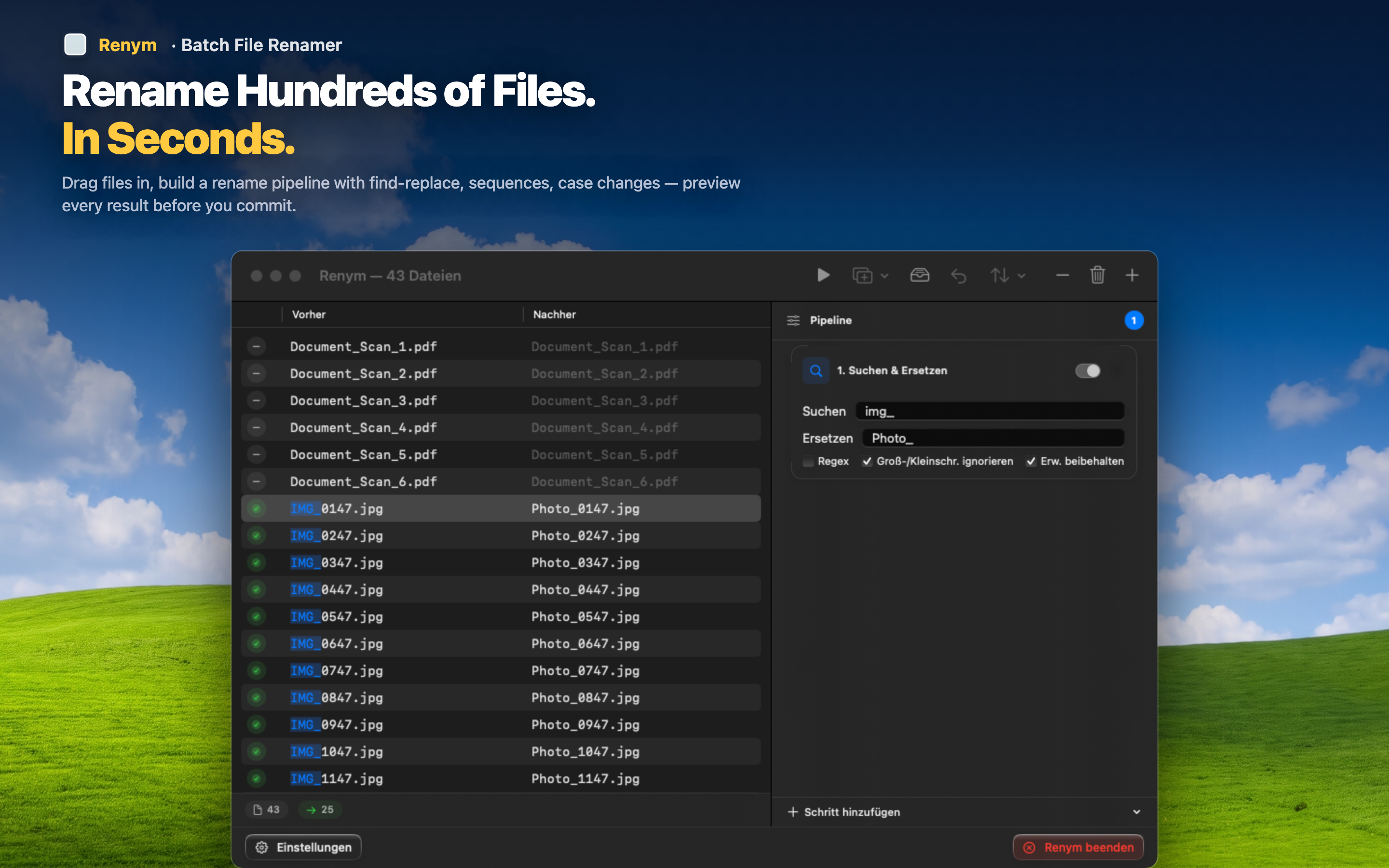
Drag, preview, apply
Drag your files into Renym and immediately see the current names alongside a live preview of what they will become. Every action you add updates the preview in real time, so you know exactly what the result will look like before you touch a single file.
Stack multiple operations
Need to remove a prefix, replace underscores with hyphens, and add sequential numbers? Build a three-step pipeline. Each step feeds into the next, and you can reorder or remove steps without starting over.
Undo when things go wrong
Renamed 300 files and realized step two was wrong? Renym supports undo, so you can revert the entire batch and try again. No manually fixing names one by one.