You have a set of files that need to be in a specific order: presentation slides, animation frames, book chapters, podcast episodes, or scanned pages. The only reliable way to keep them sorted correctly is to add sequential numbers to the file names. Sounds simple. It is not — at least not without the right tool.
The zero-padding problem
If you number files as 1, 2, 3 ... 10, 11, 12, your file manager will sort them as:
- 1, 10, 11, 12, 2, 3, 4, 5, 6, 7, 8, 9
This is because most file systems sort alphabetically, not numerically. "10" comes before "2" because "1" comes before "2" in the first character position. The fix is zero-padding: 01, 02, 03 ... 10, 11, 12. For larger sets, you need more digits: 001, 002, 003 ... 100, 101.
Getting the padding right matters. Too few digits and your sort breaks when you add more files. Too many and the names look cluttered. And you need to decide whether the number goes at the beginning or end of the file name.
What macOS offers natively
Finder's "Format" rename option can add sequential numbers with a custom name prefix. It handles zero-padding and lets you set a start number. For a straightforward numbering job, this works.
But Finder numbering has limits:
- You can only prepend or append the number — not insert it at a specific position
- You cannot combine numbering with other operations like text replacement
- The numbering replaces the entire file name except the extension — you lose the original name
- You cannot control the step value (always increments by 1)
Sequential numbering as part of a pipeline
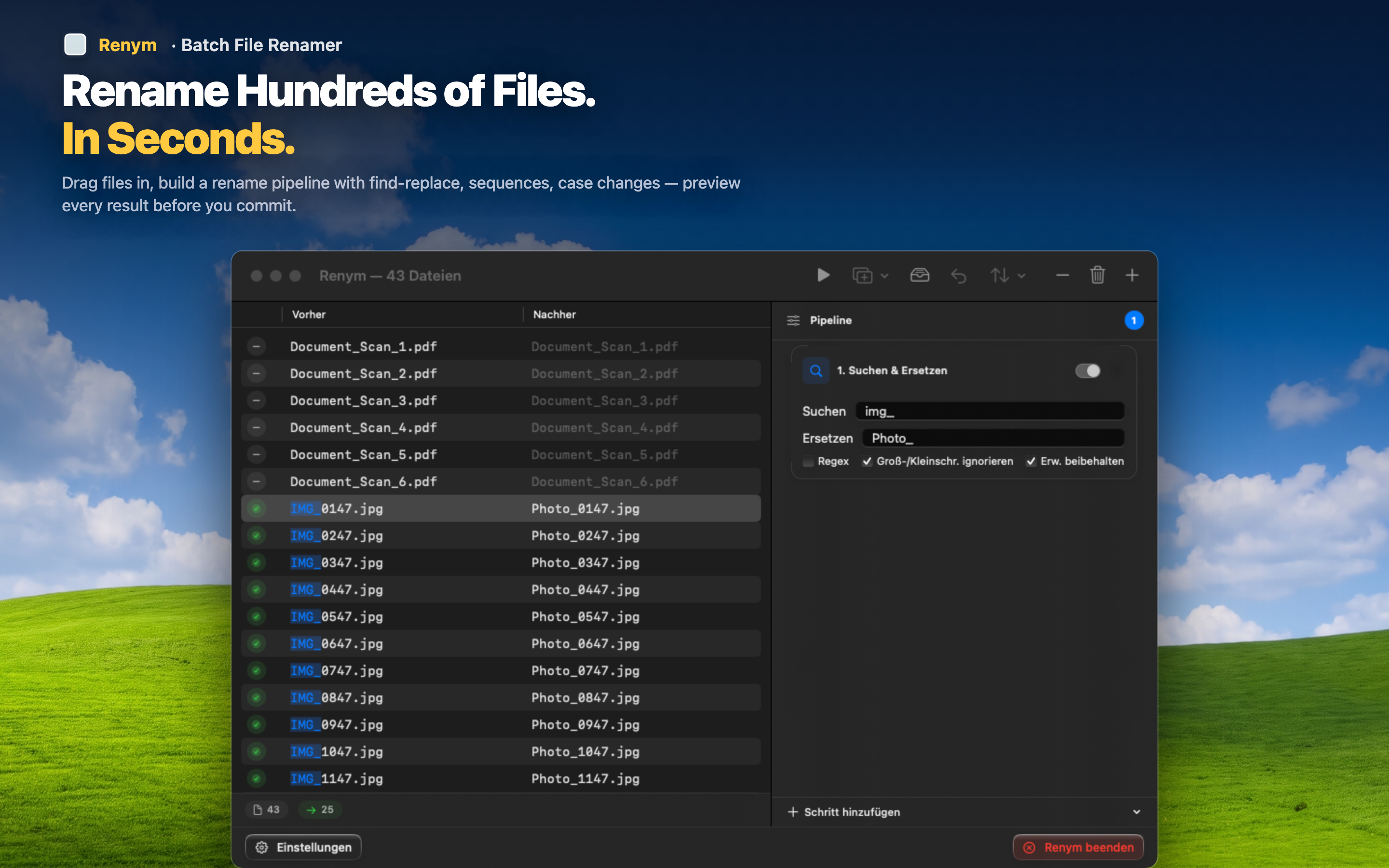
Renym includes sequential numbering as one of several actions you can add to a rename pipeline. This means you can combine numbering with any other operation.
Keep the original name and add a number
Unlike Finder's format mode, Renym lets you insert a number without wiping out the existing file name. Add "001_" as a prefix while keeping "project_brief.pdf" intact, resulting in "001_project_brief.pdf."
Combine with other actions
Clean up the name first — strip unwanted prefixes, fix case, replace characters — then add numbering as the final step. The pipeline approach means each operation builds on the last.
Preview the sequence
See every numbered file name before applying. Verify that the padding is correct, the sequence is right, and the numbers appear where you want them.
Sequential numbering is one of those tasks that seems trivial until you have 200 files and the sort order is wrong. Getting it right the first time saves a lot of cleanup later.