macOS has no built-in per-app volume, so you can't natively turn Chrome down while leaving other apps at full volume. Your fastest free fixes are muting noisy tabs, lowering the volume inside each video player, or blocking sound per-site in Chrome's settings. For a real, persistent Chrome-only volume level, you need a per-app mixer.
Why Chrome sounds louder than everything else
Chrome isn't necessarily "louder" by design — it's that Chrome routes audio from many independent sources: YouTube, autoplaying ads, video calls, background music tabs, and web apps that each ship their own loudness. Some sites are mastered hot, ads are notoriously loud, and Chrome plays all of them at your system's full output level. Meanwhile your music app or a call might be quieter, so Chrome dominates the mix.
On Windows, you'd just open the Volume Mixer and drag the Chrome slider down. macOS simply doesn't include that feature. The system volume key controls everything at once, so turning Chrome down also turns your music, notifications, and calls down. That's the core limitation — and it's an OS gap, not something you're doing wrong.
Built-in fixes that cost nothing
Before installing anything, try these. They won't give you a single Chrome volume dial, but they solve most "one loud tab" problems.
- Mute a noisy tab. Right-click the tab and choose "Mute site," or click the small speaker icon that appears on a tab playing audio. This silences that tab completely without touching the rest of Chrome.
- Lower the volume inside the player. The most reliable trick: drag the volume slider down inside YouTube, Netflix, or whatever's playing. Web players remember their own level per site, so a quieter YouTube stays quiet next time.
- Block sound per site. Go to chrome://settings/content/sound. You can flip sites between "allowed" and "muted," and add specific domains to a mute list. Great for permanently silencing sites that autoplay.
- Kill autoplay ads. Ad audio is often the real culprit. A content blocker or muting the tab until you're ready to watch removes most surprise loudness.
These are genuinely useful and free. But notice what they can't do: they mute or manage individual tabs. None of them let you say "keep all of Chrome at 40% while my music stays at 100%."
The honest limitation: no per-app volume in macOS
If your actual goal is "Chrome should always be quieter than my other apps," the built-in tools fall short. Per-tab muting is all-or-nothing. Player sliders reset when a site doesn't remember them and have to be redone constantly. And the system volume moves everything together.
This is a real macOS limitation, not a bug you can configure away. Apple has never shipped a Windows-style volume mixer. The only way to get a persistent, independent volume level for Chrome specifically is a third-party app that sits between your apps and your output device and applies per-app gain.
Set a real per-app volume for Chrome
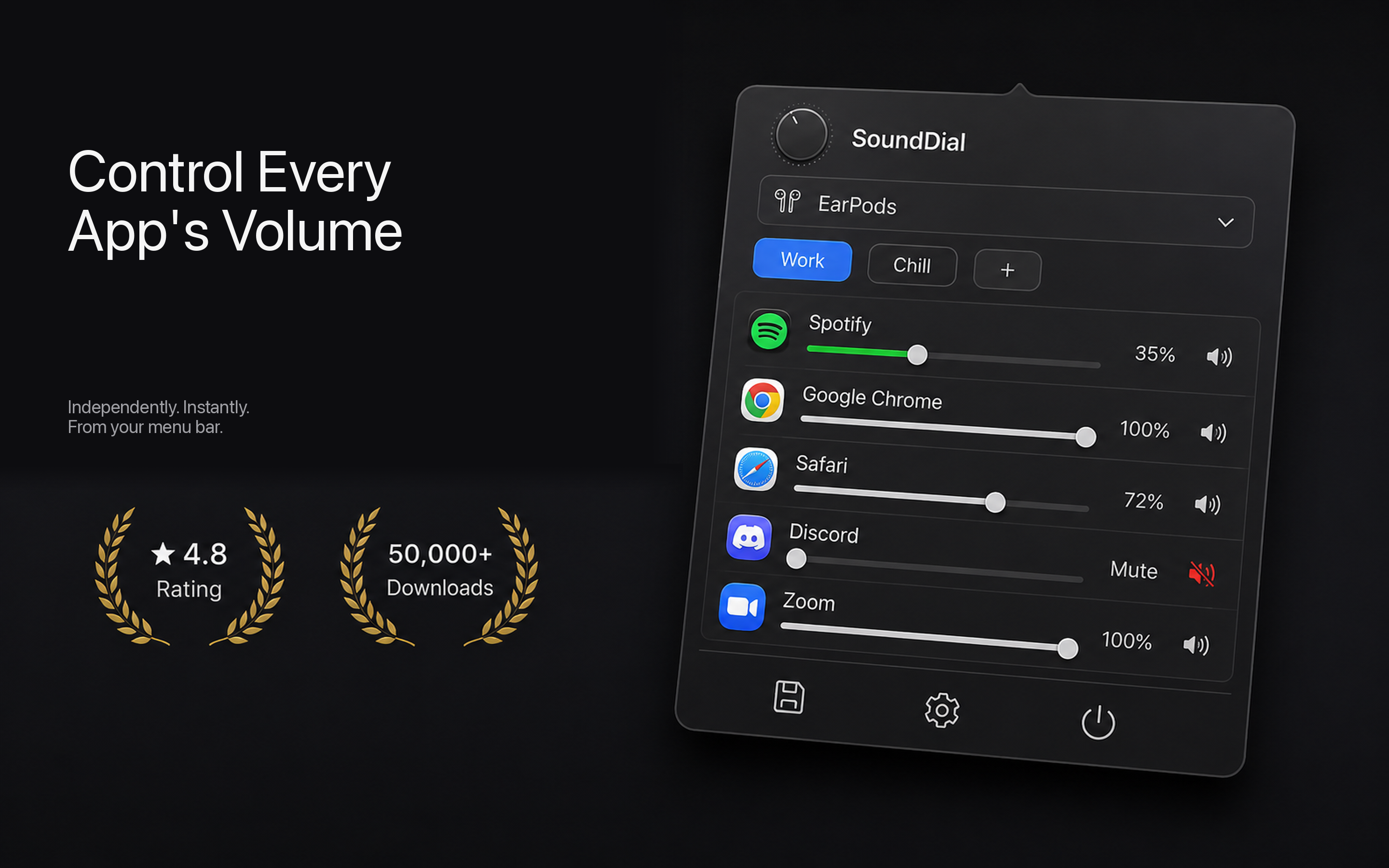
A menu-bar mixer like SoundDial gives macOS the per-app volume control it's missing. It lists every app currently playing audio and gives each one its own slider — so you can pull Chrome down to a comfortable level and leave Spotify, your calls, and system sounds exactly where they are.
Here's how you'd tame a loud Chrome with it:
- Open the menu-bar mixer and find Chrome in the list of active apps.
- Drag Chrome's slider down to, say, 40 to 50 percent. Other apps stay untouched.
- If a specific app is too quiet instead — a call app that whispers — use per-app volume boost to push it above 100 percent, while keeping Chrome low.
- Mute Chrome instantly with a per-app mute when you need silence without closing tabs.
Because the level is tied to the app, it sticks. Chrome stays at your chosen volume across tabs, sites, and restarts — no re-dragging player sliders every time you open a new video.
Going further: profiles, ducking, and output switching
Once you have per-app control, a few extras make it worth keeping around. SoundDial lets you save volume profiles — for example a "focus" profile where Chrome is quiet and music is loud, and a "watching" profile where Chrome dominates — and switch between them in one click. Auto-ducking can dip other apps automatically when a chosen source starts (handy so a call is never buried under a loud browser tab). And quick output switching lets you jump between speakers, headphones, and other devices without diving into System Settings.
It's a €14.99 one-time purchase on the Mac App Store — no subscription, no drivers to install, no DMG or kernel extension. Because it's sandboxed and distributed through the App Store, it doesn't require the sketchy audio-driver installs older mixer tools relied on.
Which fix should you use?
If you just have one obnoxious tab now and then, use Chrome's built-in mute and the site sound settings — they're free and they work. If you constantly find yourself wishing Chrome could simply be turned down while everything else stays put, that's the exact gap macOS leaves open, and a per-app mixer is the clean fix.
Want Chrome permanently quieter without muting your music or calls? Get SoundDial on the Mac App Store and give every app its own volume slider.