If your Mac's volume keys are greyed out or do nothing for a monitor connected over HDMI or DisplayPort, that's usually not a bug. Digital display audio is often sent at a fixed level, and the monitor's own hardware controls the volume. The fix is to adjust the display, reroute output, or use a different audio device.
Why the Mac volume keys stop working over HDMI/DisplayPort
HDMI and DisplayPort carry audio as a digital stream. Many monitors receive that stream at a fixed output level and expect you to control loudness on the display itself, not on the source device. When macOS detects this, it disables the on-screen volume slider and greys out the F11/F12 keys, showing a "no entry" symbol when you press them.
This is a hardware and protocol limitation, not something software on the Mac can override. The audio never passes through a stage where macOS is allowed to attenuate it. No app, driver, or setting can inject volume control into a stream the display insists on receiving at full level. Being honest about that saves you hours of chasing the wrong fix.
Fix 1: Use the monitor's own controls (OSD)
This is the real solution for most people. Nearly every monitor with built-in speakers has an on-screen display menu driven by physical buttons or a joystick on the back or underside of the panel.
- Press the OSD/menu button to open the monitor's settings.
- Look for an Audio or Volume section.
- Lower the level there — this is the control that actually works over HDMI/DP.
Some monitors also expose a companion app or DDC/CI support so you can drive the OSD from macOS. Third-party utilities that speak DDC can map your Mac's volume keys to the monitor's hardware volume, which is worth trying if you hate reaching for the panel buttons.
Fix 2: Check Audio MIDI Setup
Open Audio MIDI Setup (in /Applications/Utilities). Select your monitor in the device list. If a volume slider appears on the right, drag it down — sometimes the display exposes a software-controllable level even when the menu-bar keys are disabled. If the slider is missing or greyed out, the display is confirming it only accepts fixed-level audio, and you should fall back to the OSD.
While you're here, confirm the correct output device is selected. It's common to have audio silently routed to a monitor you forgot was connected, which explains sudden loud or absent sound.
Fix 3: Route audio somewhere you can actually control
If your monitor's speakers are mediocre anyway (most are) and its volume control is clumsy, the cleanest fix is to stop using them:
- Plug speakers or headphones into the monitor's headphone-out jack if it has one — that analog output is usually volume-controllable from the display.
- Use a USB DAC, USB speakers, or a Bluetooth output. USB and analog outputs give macOS full software volume control, so your keys work normally again.
- Select your Mac's built-in speakers for quick sounds and keep the monitor for video only.
Once you're on an output that macOS can actually attenuate, the system volume keys behave, and you regain fine control instead of jumping between the monitor's coarse OSD steps.
Once output works, control volume per app
Getting a controllable output back solves the "too loud / stuck" problem. But macOS still gives you only one master volume for everything. There's no built-in per-app mixer on the Mac — Windows has had one for years, but Apple never shipped an equivalent. So a loud video, a game, and a quiet call all share the same slider.
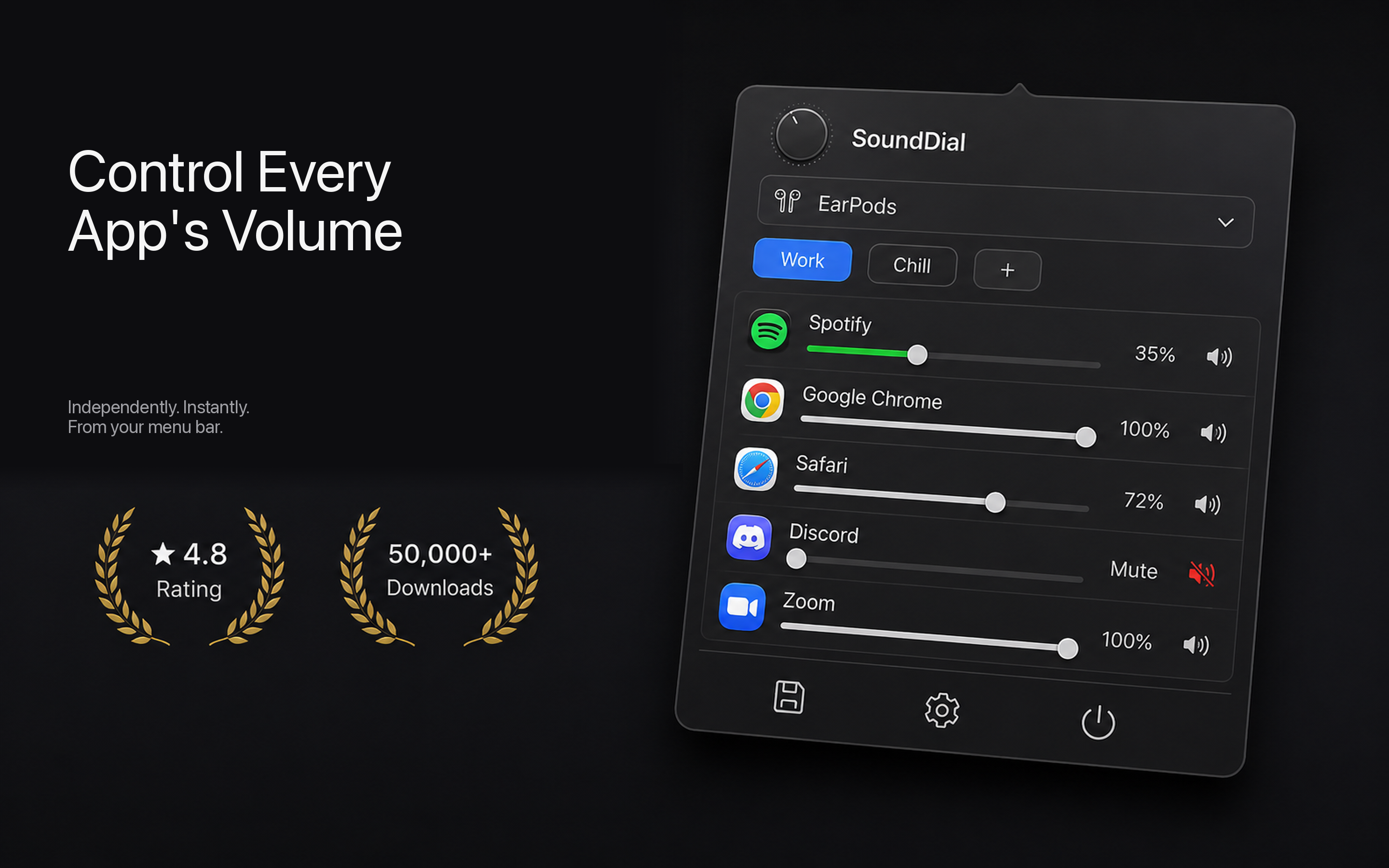
That's the gap SoundDial fills. It's a menu-bar mixer that gives each app its own independent volume, so you can turn a browser tab down without touching your music, mute one app instantly, or boost a quiet app above its normal ceiling. You can save volume profiles for different setups and switch outputs quickly from the menu bar.
To be clear about scope: SoundDial controls software volume for audio flowing through macOS. It cannot override a monitor that's ignoring system volume over HDMI — that's the display's fixed-level behavior, and only the OSD or a different output fixes it. Once you're on a controllable output, per-app control is where the app shines.
Quick checklist
- Keys greyed out over HDMI/DP? Use the monitor's OSD volume — that's expected behavior.
- Check Audio MIDI Setup for a hidden software slider.
- Confirm the right output device is selected.
- For real control, route audio to headphone-out, USB, or Bluetooth.
- Then use a per-app mixer to balance individual apps.
Once your output is under control, give SoundDial a look. It's a €14.99 one-time purchase from the Mac App Store — no subscription, no drivers, no DMG — and it finally brings a real per-app volume mixer to macOS.