macOS has no built-in way to cap the maximum volume of one app, so a loud program plays at whatever your system slider is set to. To set a ceiling for a single app, use a menu-bar per-app mixer like SoundDial: hold that app at, say, 40 percent while your system volume stays higher for everything else.
Why one app can suddenly blast you on a Mac
On macOS, the volume slider in the menu bar or Control Center is a single system-wide control. Every app pours into the same output at the same level. There is no per-app volume mixer built into the operating system the way Windows has had one for years with its Volume Mixer panel.
That design has a real consequence for your ears. If you set your system volume high so you can hear a quiet podcast or a soft video call, then switch to a game, a Discord notification, an ad-heavy website, or a video that was mastered far louder, that app plays at the full system level too. The result is the classic jump-scare: a sudden wall of sound at a volume you never intended for that specific app.
For anyone with tinnitus, sound sensitivity, or who simply values their hearing, that unpredictability is the problem. You are not trying to make everything quieter. You are trying to guarantee that one specific loud app can never exceed a level you have decided is safe.
What macOS can and cannot do here
Let me be honest about the limits before recommending anything.
- System volume lowers everything at once. Turn it down to tame one app and your quiet apps become inaudible.
- In-app volume sliders exist in some apps (media players, some browsers per-tab) but not most. A game, a video call, or a native app often has no independent volume control at all.
- The hardware ceiling is real. No software can push a signal louder than your output device's maximum. Conversely, an app's own loudness mastering, plus your DAC and headphones, set how loud "100 percent" actually feels. Software can lower a per-app level reliably, but it cannot rewrite the physics of your headphones.
So the honest goal is not magic loudness limiting at the driver level. It is a practical, reliable per-app attenuation: hold a chosen app at a fixed fraction of the system output so it can never surprise you.
How to cap a single app's volume with a per-app mixer
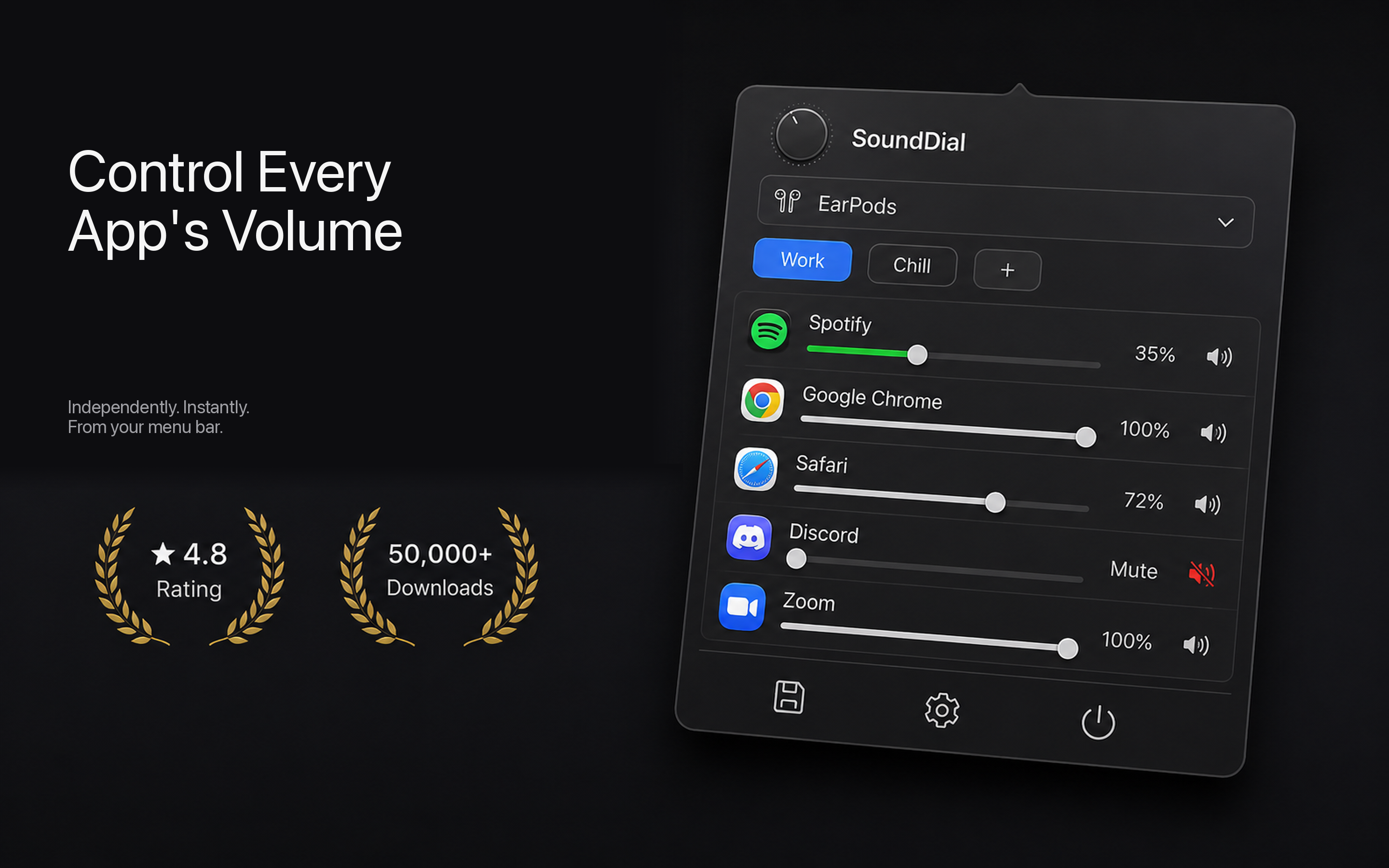
A per-app volume mixer intercepts each app's audio and lets you set its level independently. Here is the workflow with SoundDial, which lives in the menu bar:
- Open the mixer. Click the SoundDial menu-bar icon. You'll see a list of every app currently playing audio, each with its own slider.
- Find the loud app. Locate the app you want to cap, for example a game, a browser, or a video-conferencing tool.
- Set its ceiling. Drag that app's slider down to your safe level, say 35 to 50 percent. That app now plays at that fraction of the system output while every other app stays where it was.
- Leave your system volume where you need it. Keep the system slider high enough for your quiet apps. The capped app stays reined in regardless.
Because the level is per-app, you are effectively setting a maximum for that one program. Even when it tries to play its loudest content, its loudest is now your chosen fraction of full.
Make the cap stick with profiles
A single manual adjustment helps, but app levels can reset when you quit and relaunch. To make a hearing-safe setup that survives restarts, use SoundDial's volume profiles. Save a profile with your preferred per-app levels, for example "quiet game night" with the game at 40 percent, your music app at 70 percent, and your call app at 90 percent. Recall it in one click whenever you sit down. Your ceiling for the loud app comes back exactly as you set it.
Two more features are worth knowing for hearing protection:
- Per-app mute lets you instantly silence a single offender without touching anything else, useful for an app that spams loud notifications.
- Auto-ducking automatically dips background audio when something more important starts, so you are not caught between two loud sources at once.
Software attenuation is genuinely effective for capping an app, but it is one layer of protection, not a medical safeguard. If you have tinnitus or sound sensitivity, pair a per-app ceiling with sensible overall listening levels and breaks. No app replaces careful volume habits.
A note on boost, and why it's separate
The same per-app mixer that caps a loud app can also boost a too-quiet one above 100 percent, which is handy for an app whose own volume is mastered too low. These are two sides of the same control: you decide each app's level, up or down. For hearing protection you are simply choosing the "down" direction and holding it there.
The short version
macOS won't let you cap a single app's volume on its own, and that is a genuine OS gap, not user error. A menu-bar per-app mixer closes it: set the loud app to a fixed fraction, save it in a profile, and it can never blast you again while your other apps stay audible.
SoundDial is a one-time €14.99 purchase on the Mac App Store, sandboxed with no drivers or DMG to install. If protecting your ears from one unpredictable app is the goal, it's the simplest way to set that ceiling and keep it.