Apps sound wildly different on your Mac because each one is authored, mastered, and normalized to its own loudness target, and macOS has no built-in per-app volume control to reconcile them. Spotify, YouTube, Zoom, and system alerts all pass through the same master slider, so you're stuck riding it up and down constantly.
It's not your Mac — it's the audio itself
The single system volume slider on macOS controls the final output level for everything. It does not touch the relative loudness baked into each app's audio stream. That baseline is set long before the sound reaches your speakers, and it varies enormously from source to source.
Three things drive those differences:
- Mastering levels. A punchy pop track is mastered far hotter than a quiet acoustic recording or a spoken-word podcast. A movie mixed for a cinema keeps whispers quiet and explosions loud on purpose — that's dynamic range, and it means the average level is low.
- Loudness normalization targets. Streaming platforms adjust playback to a target measured in LUFS (Loudness Units relative to Full Scale). Spotify aims around -14 LUFS, YouTube roughly -14 LUFS, Apple Music around -16 LUFS. A video conferencing app or a game applies its own gain entirely. Two apps "normalized" to different targets will never match each other.
- No cross-app leveling. Each app normalizes only its own content. Nothing coordinates Spotify against Zoom against a browser game. macOS just sums them and sends the mix out.
Why LUFS matters (in plain terms)
Peak level tells you the single loudest instant in a signal. LUFS tells you how loud something actually feels over time, weighted for how human hearing works. This distinction is why a podcast and a dance track can hit the same peak yet feel worlds apart in loudness — the track spends far more time near its ceiling.
A quieter LUFS target means more headroom and more dynamic range. A louder target means a more consistent, "always full" wall of sound. Neither is wrong — but when apps target different numbers, you feel it as one app screaming and another mumbling.
That's the honest root cause. It is not a bug you can patch. It's the physics of how audio is produced and delivered, multiplied across a dozen apps that were never designed to agree with each other.
The gap macOS leaves open
Here's the part that genuinely frustrates people: Windows has shipped a per-app Volume Mixer for years. You can pull one app down and push another up, right from the taskbar. macOS has never included this. Sound preferences only give you the master slider and output device selection.
So on a Mac your options have traditionally been limited:
- Adjust each app's own internal volume slider — if it even has one. Many apps (Zoom, most games, system chimes) do not expose a usable one.
- Ride the master slider manually every time you switch context.
- Mute one thing entirely, which is a blunt fix that doesn't actually balance anything.
None of these remember your preference. Quit and relaunch the app and you're back to square one.
The practical fix: a remembered volume per app
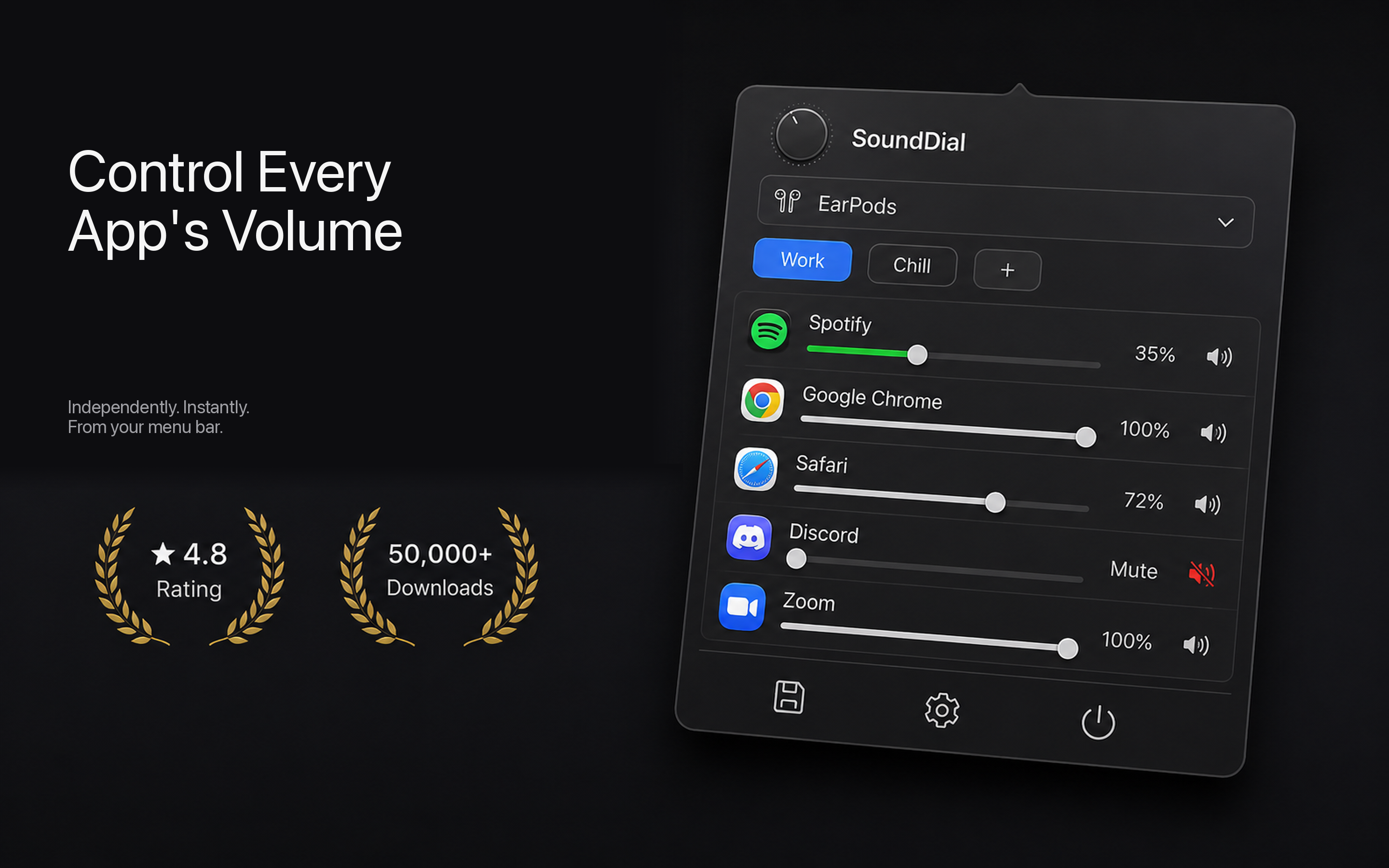
Since you can't force every service to re-master its catalog, the workable solution is to add the missing layer macOS never shipped: independent, remembered volume for each app. That's exactly what SoundDial does. It lives in your menu bar and gives every running app its own slider, so you can pull the loud one down and nudge the quiet one up until they sit at a level that feels even to you.
To even out your apps in practice:
- Open SoundDial from the menu bar and you'll see each active app with its own control.
- Turn down whatever is blasting — usually a music or video app mastered hot — to something like 60-70%.
- Leave your quiet reference app (often a call app or podcast) at 100%, and use per-app boost to push it past 100% if it's still too soft.
- Set the levels once. SoundDial remembers each app's volume, so the balance holds the next time you open it.
Two features do most of the leveling work here. Boost matters because plenty of apps are simply too quiet even at maximum — a per-app slider that only cuts volume can't rescue them, but one that can amplify past 100% can. And volume profiles let you save a whole set of levels — say, a "focus music low, calls loud" profile for work versus a different mix for gaming — and switch between them instantly instead of re-adjusting app by app.
Where this helps most
The most common relief is the music-versus-meeting jump: streaming music mastered loud, then a call app that sounds faint by comparison. Set the call app higher (or boosted), pull the music down, and the startling volume swing disappears. The same applies to a quiet browser game against a loud video player, or system alerts that jump out over everything.
To be clear about the limits: SoundDial balances what your apps output. It won't re-master a badly produced track, and it can't invent detail in audio that was mixed with very wide dynamic range. What it does is give you the one control macOS left out — steady, per-app levels that stay put.
Tired of riding the master slider every time you switch apps? SoundDial is a one-time €14.99 on the Mac App Store — sandboxed, no drivers, no DMG — and it finally gives every app its own remembered volume.