Start inside each app: WhatsApp and Telegram both let you mute or change notification sounds in their own settings, which is the cleanest fix. But macOS has no per-app notification volume slider, so if the app's own sound is still too loud, your only real lever is to lower or mute that entire app's audio with a per-app volume tool.
First, use the app's own notification settings
Both WhatsApp and Telegram ship their own sound controls, and this is where you should always start. It's the most precise fix and it doesn't touch anything else on your Mac.
WhatsApp Desktop: Open WhatsApp, click Settings (the gear icon), then Notifications. You can toggle off Sounds entirely while keeping banners, or disable notification previews. WhatsApp doesn't offer a volume slider, so it's essentially on or off for the sound itself.
Telegram Desktop: Open Settings → Notifications and Sounds. Telegram is more flexible here. You can turn off the notification sound globally, mute individual chats, or set custom (quieter) tones. You can also silence a single noisy group by opening it and choosing Mute. For most people, muting the loudest chats fixes the problem without going silent everywhere.
If the sound is fine but too frequent, mute the specific chats or channels that fire most often rather than killing sound app-wide. That keeps important alerts audible.
Turn off notification sounds in macOS System Settings
macOS has a second layer of control that overrides the app in some cases. Go to System Settings → Notifications, select WhatsApp or Telegram in the list, and turn off Play sound for notifications. This silences the alert chime for that app while still showing banners.
This is a genuinely good fix if you only want the app to be quiet on notifications and don't care about its other audio (calls, video). Combined with the app's own settings, it covers most "the ping is jarring" complaints.
The real limitation: macOS has no per-app volume
Here's the honest part. The steps above are on/off switches. What they can't do is turn WhatsApp or Telegram down to, say, 40% while keeping everything else at full volume. Windows has had a per-app volume mixer for years. macOS simply doesn't include one, and there's no hidden setting or Terminal command that adds it.
This matters when the problem isn't the notification chime specifically, but the whole app being too loud:
- WhatsApp or Telegram voice and video calls that blast at full volume relative to your music or a meeting
- A notification sound you want to keep but at a lower level, not off entirely
- Ringtones that spike far above whatever else you're listening to
- Wanting the app audible but quietly in the background while you focus on something else
None of that is solvable with the built-in tools, because they only offer mute, not a level. That gap is a real macOS limitation, not something you're missing.
Set a per-app volume with SoundDial
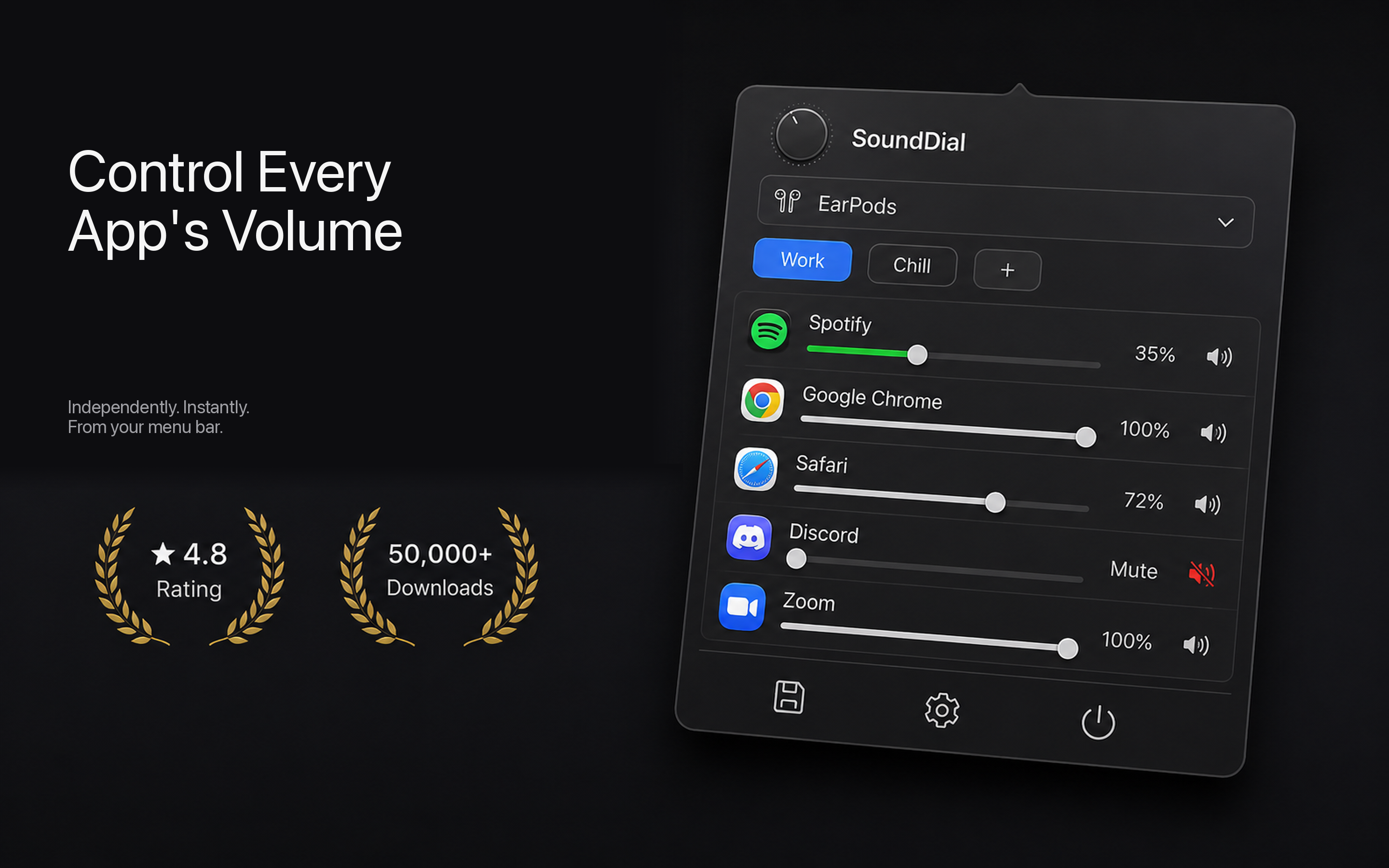
To actually turn a single app down instead of off, you need a per-app volume mixer. SoundDial is a menu-bar app that gives macOS the per-app volume control it never shipped with. It lists every app currently playing audio and gives each one its own slider.
For this specific problem:
- Open SoundDial from the menu bar and find WhatsApp or Telegram in the list.
- Drag its slider down to a comfortable level, for example 30–40%, while leaving your music, browser, or video call untouched.
- Use the per-app mute button to silence just that app instantly during a call or a meeting, then unmute later without digging through settings.
- If you ever need the opposite, a quiet app that's too soft, the per-app boost can push it above 100%.
Because it sets a level per app, SoundDial keeps notification chimes and call audio audible but proportionate, instead of the all-or-nothing choice the built-in options force on you. You can also save volume profiles, so a "focus" setup that keeps chat apps low is one click away.
One honest caveat: lowering an app's overall volume in SoundDial also lowers its notification chimes, since to macOS they're the same app's audio. If you want notifications completely off but calls at full volume, use the app's own mute plus System Settings for the chime, and reserve SoundDial for setting the general level.
SoundDial is a one-time €14.99 purchase on the Mac App Store, sandboxed, with no subscription, no kernel drivers, and no DMG to sideload. It's the practical answer when the fix you actually want, turning one app down rather than off, isn't something macOS itself can do.
Which fix should you use?
Work top to bottom. Try the app's own notification settings first, then macOS System Settings to kill the chime. If what you really want is to lower WhatsApp or Telegram to a specific volume, or mute just that app on the fly during calls, that's where a per-app mixer earns its place.
Tired of choosing between full blast and total silence for your chat apps? Get SoundDial on the Mac App Store and give every app its own volume dial.