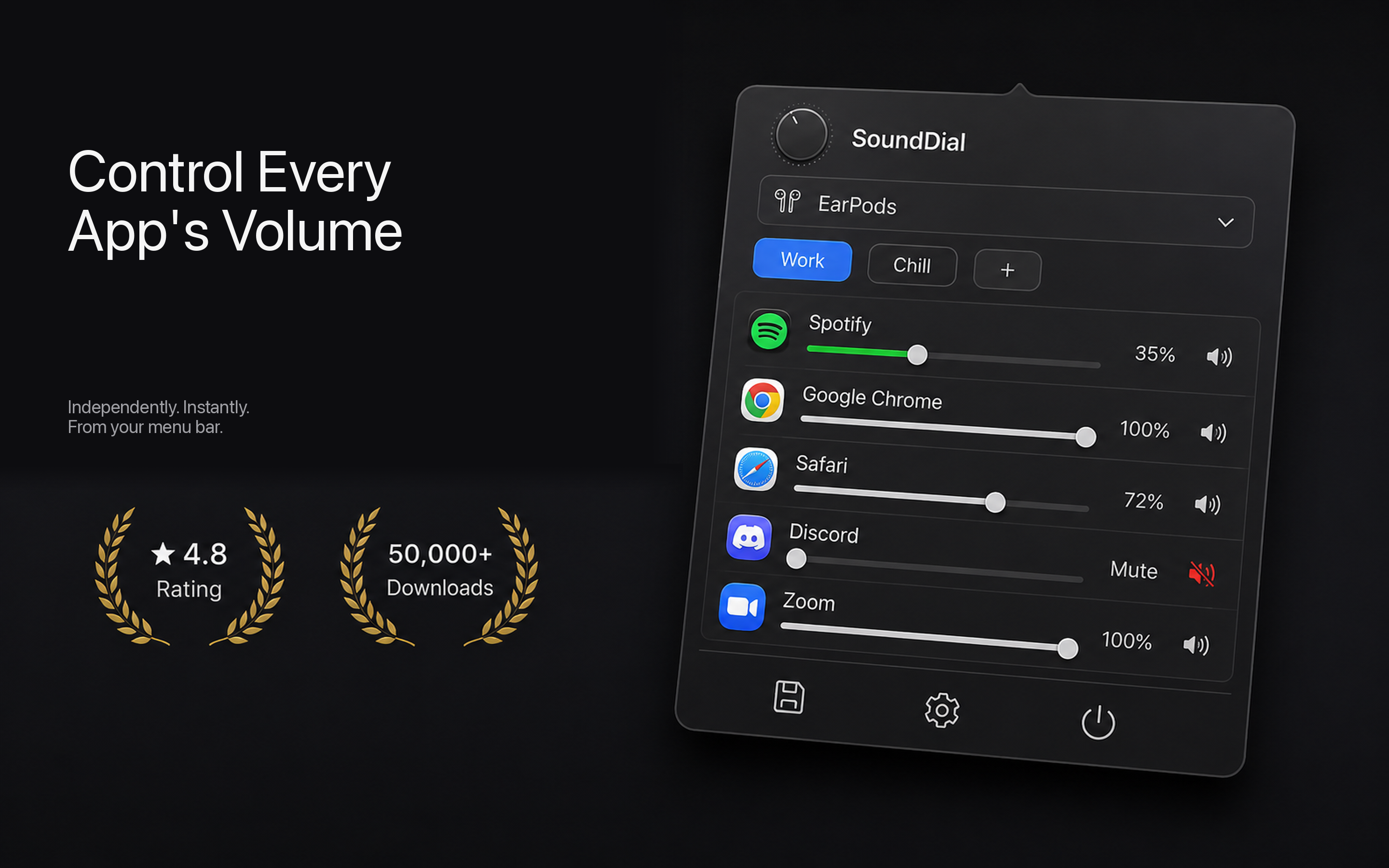
If your Mac isn't loud enough even at maximum volume, the fastest reliable fix is SoundDial, a Mac App Store menu-bar mixer that lets you boost any single app past 100% and mute everything else. That means louder, clearer speech from FaceTime, video, or a movie player without cranking your whole system. It's €14.99, one-time.
Why maxing the volume slider still isn't enough
For hard-of-hearing listeners, the macOS volume slider has two frustrating limits. First, it caps at 100% of what the app itself outputs. If a podcast, video, or call was recorded quietly, "full volume" is still too soft. Second, macOS has no built-in per-app volume mixer. Windows has had one for years, but on a Mac every app shares a single master level. So when you turn everything up to hear a soft voice, background music and notification sounds get uncomfortably loud too.
What you actually need is the ability to make one app louder than the rest, push it beyond its normal ceiling, and cut competing sounds so speech stands out. That's exactly the gap these tools fill.
First, use the free macOS accessibility settings
Before adding any app, it's worth setting up what macOS already offers. These help clarity, though they don't add raw loudness:
- Mono audio: System Settings → Accessibility → Audio, turn on "Play stereo audio as mono." If your hearing is stronger in one ear, this sends the full signal to both, so you don't lose half the dialogue.
- Balance adjustment: In System Settings → Sound, drag the left/right balance toward your stronger ear.
- Reduce background sounds: Lower music and ambience in apps that allow it, so voices aren't fighting a soundtrack.
- Headphone accommodations: If you use AirPods or Beats, System Settings → Accessibility → Audio → Headphone Accommodations can amplify soft sounds and tune for speech.
These are genuinely useful and cost nothing. But none of them make a single quiet app louder than 100%, and that's usually the real problem.
How to boost one app past 100% with SoundDial
SoundDial lives in your menu bar and shows a slider for every app currently playing sound. Here's the workflow that helps most for hard-of-hearing listening:
- Boost the app you're listening to. Drag its slider above 100% to amplify a quiet video call or podcast beyond what the app allows on its own.
- Mute or lower everything else. Pull down music, browser tabs, or notification sounds so nothing competes with the voice you're trying to follow.
- Turn on auto-ducking. When you start speaking on a call, SoundDial automatically dips other audio so the person you're talking to comes through clearly, then restores it after.
- Save a volume profile. Create a "video calls" profile where your conferencing app is boosted and everything else is quiet, then switch to it instantly instead of re-adjusting every time.
- Switch output quickly. Jump between speakers, a headset, or a hearing-aid-connected device from the same menu, without digging through System Settings.
The boost feature is the key one here. Because it raises the app's output above its native maximum, a whisper-quiet recording becomes something you can actually hear, while the rest of your system stays at a comfortable level.
A quick word on distortion
Any software boost amplifies whatever is in the signal, so pushing far past 100% on already-loud audio can introduce clipping. In practice, boosting quiet content up to a comfortable, intelligible level sounds clean. Start modestly, raise until speech is clear, and back off if it starts to sound harsh. Protecting your remaining hearing matters, so aim for clarity rather than maximum loudness.
How SoundDial compares to the alternatives
You have a few options, and honesty helps you choose the right one:
- SoundSource (Rogue Amoeba, ~$39): Genuinely pro-grade, with per-app EQ and output routing. If you want to sculpt frequencies for hearing loss, it's powerful. But it costs more than twice as much, requires a direct download, and installs an audio-capture driver. That's more setup and system access than many people want.
- Background Music (free, open-source): Offers per-app volume for free, but it lacks boost, profiles, and auto-ducking, and it can break on newer macOS versions since it hooks deep into the audio system.
- FineTune (free, open-source): A lightweight menu-bar volume app. Fine for basics, but without the boost, profiles, and ducking that hard-of-hearing listeners lean on.
- eqMac (free): An equalizer with a booster. Useful for shaping sound, but it's built around EQ rather than clean per-app mixing and profiles.
Where SoundDial stands out is the balance of price, safety, and the specific features that matter here. Because it's on the Mac App Store, it's Apple-reviewed and sandboxed, installs cleanly with no DMG, and needs no audio drivers or system extensions. You get per-app boost, mute, volume profiles, and auto-ducking in one €14.99 one-time purchase, with nothing digging into the macOS audio stack.
The bottom line
Set up the free macOS accessibility options first, they're worth having. But if the real issue is that one app is simply too quiet, you need a tool that can push a single app past 100% and quiet the rest. That's the whole point of a per-app boost, and macOS doesn't do it on its own.
Ready to actually hear your Mac? Get SoundDial on the Mac App Store for €14.99, boost the app you need, and let auto-ducking and profiles keep speech clear.