आप deep focus work में हैं। Spotify परफेक्ट concentration playlist चला रहा है। फिर — knock brush — Slack ping करता है। और फिर। आप Slack mute करना चाहते हैं लेकिन संगीत रखना चाहते हैं। macOS कहता है: सब mute करो या कुछ मत करो।
Option 1: Slack में notifications mute करें
Slack में "Pause notifications" feature है:
- Slack के sidebar में profile picture click करें
- "Pause notifications" click करें
- Duration चुनें (30 min, 1 hour, आदि)
Option 2: Per-app volume control (असली fix)
आप वास्तव में जो चाहते हैं वह simple है: Slack की volume 10-15% पर करें जबकि बाकी सब normal levels पर रखें।
SoundDial Slack को अपना independent volume slider देता है।
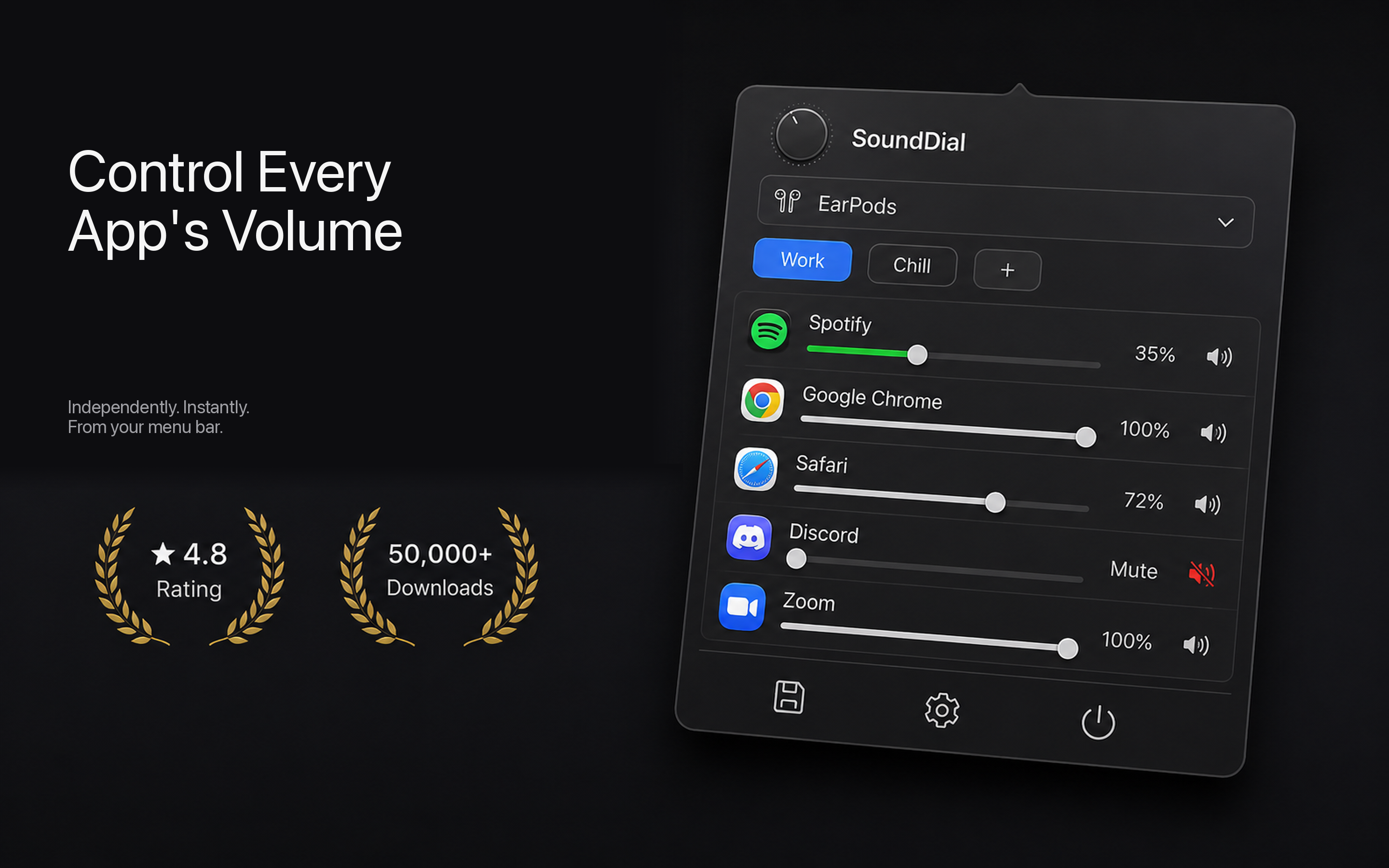
आदर्श Slack workflow
- Focus time: Slack 10% या muted। Spotify 40%।
- Available time: Slack 40%।
- Meeting time: Slack muted। Zoom 100%।
Mac App Store पर SoundDial पाएं — €14.99 एकमुश्त खरीद, कोई सदस्यता नहीं, macOS 14.2+।