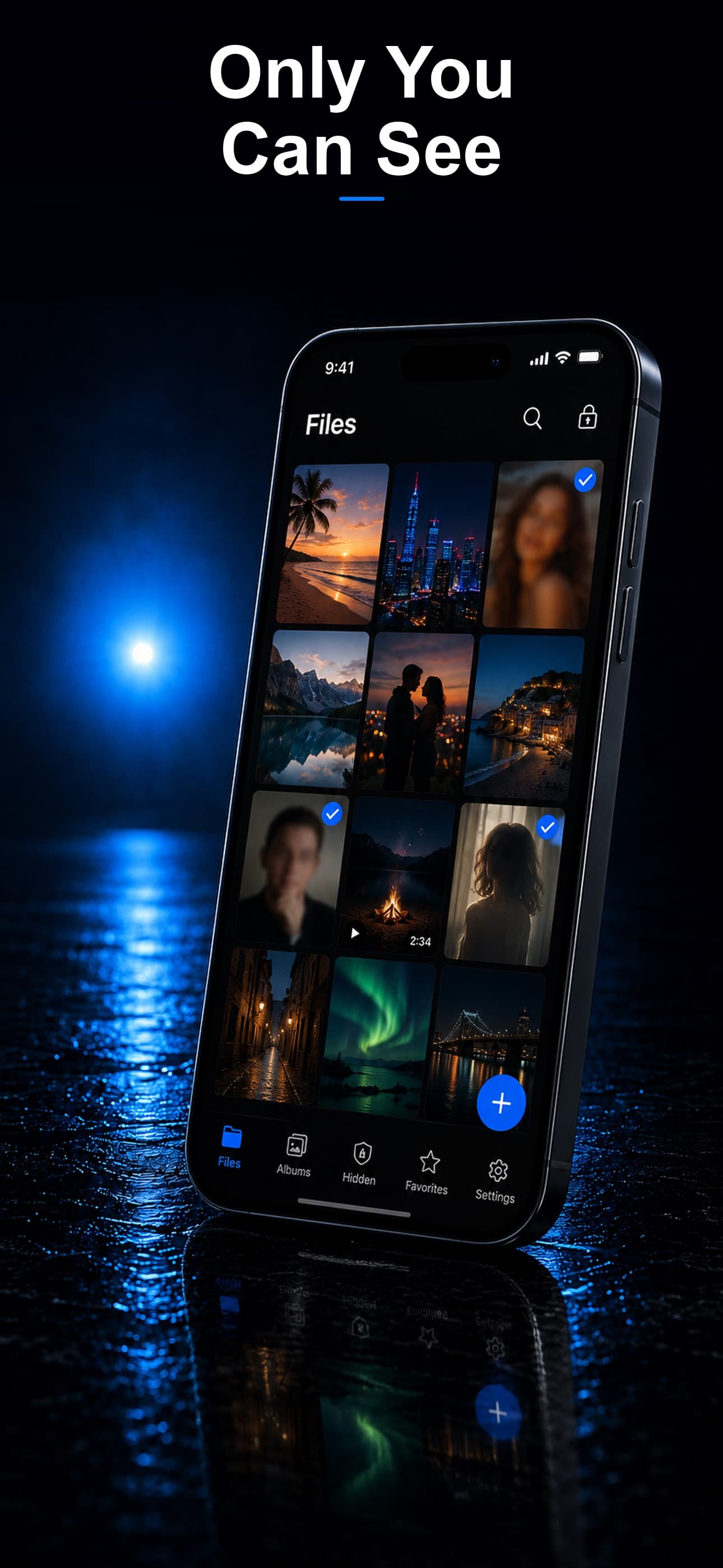
Every iPhone has a built-in way to hide photos, but most people discover too late that it is not nearly as private as they expected. Whether you are trying to keep personal photos away from casual scrollers or need genuine encryption for sensitive images, this guide covers every method available in 2026 — from Apple's native options to dedicated vault apps that provide real security.
Method 1: The Built-In Hidden Album
Apple's Photos app includes a "Hide" option that has been available for years. Here is how to use it:
- Open the Photos app and select the photos you want to hide.
- Tap the share button (the square with an upward arrow).
- Scroll down and tap "Hide."
- Confirm by tapping "Hide Photo" or "Hide [X] Photos."
The selected photos will move to a Hidden album in the Utilities section of the Albums tab. Since iOS 16, this album requires Face ID, Touch ID, or your device passcode to open.
Limitations of the Hidden Album
While the Hidden Album is better than nothing, it has significant limitations that most users are not aware of:
- Same device passcode: Anyone who knows your iPhone's lock screen passcode can access the Hidden Album. If you share your passcode with a partner, child, or friend, they can see everything you have hidden.
- Visible in Settings: The Hidden Album toggle is visible in Settings under Photos. Someone browsing your settings can see that you have hidden content enabled.
- No separate encryption: Hidden photos are protected by the same device encryption as all your other photos. There is no additional encryption layer.
- Spotlight Search: Hidden photos can still appear in Spotlight search results and Siri suggestions in some scenarios.
- iCloud sync: If you use iCloud Photos, your hidden photos sync to Apple's servers. While Apple encrypts this data, it means your private photos exist outside your device.
- No disguise: The Hidden Album is labeled "Hidden." Anyone who opens your Albums tab can see it is there.
- No decoy: There is no way to show alternate content if someone asks you to open the Hidden Album.
Method 2: Lock Photos in a Note
A lesser-known approach is to paste photos into the Notes app and lock the note:
- Create a new note in the Notes app.
- Paste or insert the photos you want to hide.
- Tap the share button within the note and select "Lock Note."
- Set a separate password for the note (different from your device passcode).
This approach gives you a separate password, which is an improvement over the Hidden Album. However, the photos still exist in your Photos app unless you manually delete them after pasting. The Notes app is also not designed for managing large numbers of photos, and there is no organizational structure, no disguise, and no intruder detection.
Method 3: Use a Dedicated Vault App
For genuine photo privacy, a dedicated vault app provides features that Apple's built-in options cannot match:
Separate Passcode
A vault app uses its own passcode, completely independent of your device's lock screen code. This means someone who knows your iPhone passcode still cannot access your vault.
App Disguise
The best vault apps do not look like vault apps at all. Stash, for example, can disguise itself as a calculator, fitness tracker, or music player. Even someone browsing your home screen will not know a vault exists.
AES-256 Encryption
Vault apps like Stash encrypt every file with AES-256 encryption, independent of the device's own encryption. Even if someone were to extract data from your iPhone's storage, the vault files would be unreadable.
Decoy Vault
Enter a secondary passcode and a fake vault opens, filled with harmless content you have pre-selected. The real vault remains invisible. This feature does not exist in any built-in iOS tool.
Intruder Detection
If someone tries the wrong passcode, the app silently photographs them using the front camera and stores the encrypted evidence. You will know exactly who tried to access your private photos.
On-Device Storage
Unlike iCloud-synced hidden photos, a good vault app keeps everything on your device. No server copies, no cloud syncing, no third-party access.
How to Move Photos from the Hidden Album to a Vault
If you have been using the Hidden Album and want to upgrade to a vault app, the migration is straightforward:
- Download and set up your vault app (we recommend Stash).
- Open the Photos app and navigate to the Hidden Album.
- Unhide the photos temporarily so they appear in your main library.
- Import them into the vault app.
- After confirming the import was successful, delete the originals from the Photos app.
- Empty the "Recently Deleted" folder to remove the final copies.
Comparison Summary
- Hidden Album: Convenient but uses the same device passcode, syncs to iCloud, and is visibly labeled "Hidden."
- Locked Notes: Separate password but impractical for more than a few photos. No organization or security features.
- Vault App (Stash): Separate passcode, app disguise, AES-256 encryption, decoy vault, intruder detection, on-device storage, and support for any file type.
Apple's built-in tools offer a starting point, but they were not designed for serious privacy. If your photos genuinely need protection, a dedicated vault app is the only reliable solution. Download Stash from the App Store and give your private photos the encryption they deserve.