AirPods stuttering or cutting out on macOS Tahoe is almost always Bluetooth interference, not a broken headset. The usual culprits are 2.4GHz Wi-Fi and router congestion, aggressive automatic device switching, and a stale pairing. Re-pair the AirPods, turn off auto-switch, and move away from crowded 2.4GHz channels to fix most cases.
Why AirPods drop on Mac specifically
AirPods use Bluetooth, which shares the crowded 2.4GHz radio band with Wi-Fi, microwaves, USB 3 devices, and just about every smart plug in your home. Your Mac is a busy radio: it juggles Wi-Fi, Bluetooth, AirDrop, and Continuity features on overlapping antennas. When that band gets congested, Bluetooth audio is the first thing to stutter, because it can't tolerate dropped packets the way a file transfer can.
Tahoe didn't magically make your AirPods worse, but a fresh macOS install often resets radio behavior, re-enables Continuity hand-offs, and re-negotiates codecs. That's why problems seem to appear right after an update. The good news: the fixes are well understood and mostly free.
Fix 1: Re-pair the AirPods (do this first)
A stale or corrupted pairing survives reboots and causes intermittent drops that look random. Fully remove and re-add the connection:
- Open System Settings, Bluetooth.
- Click the info (i) button next to your AirPods and choose Forget This Device.
- Put the AirPods in their case, close the lid, wait 15 seconds, then open it.
- Hold the button on the back of the case until the light blinks white.
- Re-pair from the Bluetooth list.
While you're there, make sure the AirPods firmware is current. There's no manual updater, but leaving them in the case near a connected iPhone or Mac for a while lets them update in the background.
Fix 2: Turn off automatic switching
This is the single biggest cause of "cutting out" for people in the Apple ecosystem. Your AirPods try to follow you between your Mac, iPhone, and iPad. Every time your phone thinks it should grab audio, the connection hiccups on your Mac, producing a half-second dropout mid-podcast.
- On the Mac: Bluetooth, click (i) next to the AirPods, set Connect to This Mac to When Last Connected to This Mac instead of Automatically.
- On the iPhone: Settings, tap your AirPods, Connect to This iPhone, choose When Last Connected to This iPhone.
This stops the tug-of-war between devices. You'll manually pick where audio goes, which is a small price for stable playback.
Fix 3: Cut 2.4GHz congestion
If drops happen during video calls, downloads, or when other people are streaming, your radio band is saturated. A few practical moves:
- Use the 5GHz Wi-Fi band on your Mac. In your router settings, give the 5GHz network a distinct name and connect to it. This frees the 2.4GHz band for Bluetooth.
- Move USB 3 and Thunderbolt hubs away from your Mac and AirPods. USB 3 is a notorious 2.4GHz noise source; a hub sitting next to your laptop can wreck Bluetooth from inches away.
- Change your router's 2.4GHz channel to 1, 6, or 11 (the non-overlapping options) and avoid crowded channels your neighbors are on.
- Keep line of sight. Bodies and walls absorb 2.4GHz. If your Mac is behind you or in a bag, drops get worse.
Wi-Fi 6E and Wi-Fi 7 routers can help indirectly: pushing your devices onto 6GHz clears the 2.4GHz band that Bluetooth depends on. But a poorly configured mesh that keeps steering you back to 2.4GHz can make things worse. Check which band you're actually on.
Fix 4: Reset the Bluetooth and Continuity stack
If re-pairing didn't hold, reset the radios themselves:
- Toggle Bluetooth off and on from the menu bar, then reboot the Mac. A reboot clears a surprising number of transient audio glitches.
- Reset the SMC/NVRAM on Intel Macs, or simply shut down fully (not restart) for 30 seconds on Apple Silicon.
- If you don't use AirDrop or Handoff, disabling Handoff in System Settings, General, AirDrop & Handoff reduces background radio chatter.
What won't fix it (and what a volume mixer actually does)
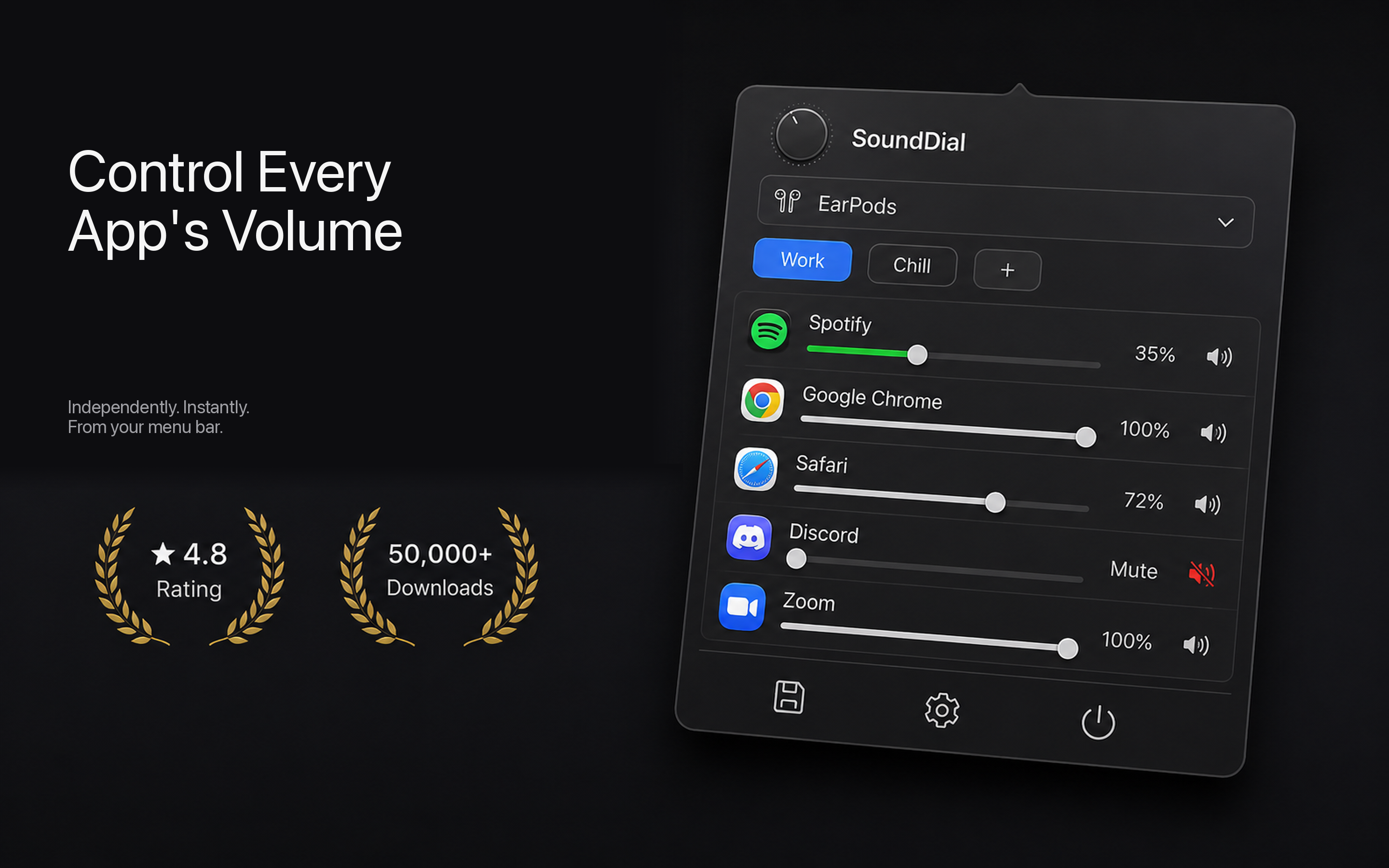
To be clear about scope: none of this is a software-volume problem, and no volume app can repair a Bluetooth link. If your audio is dropping, chase the radio issue above. Apps like SoundDial control per-app volume, mute, and output switching, they don't touch the Bluetooth stack, so they won't stop stuttering. Where a mixer genuinely helps is the adjacent annoyance many AirPods users conflate with dropouts: one app blasting while another is too quiet, or needing to jump outputs quickly. That's a volume-balance problem, not a connection one.
Diagnose honestly. If audio cuts out for a beat and returns, it's interference or auto-switch. If levels are just uneven between apps, that's a mixing problem you can actually solve with software.
Quick checklist
- Forget and re-pair the AirPods.
- Set both Mac and iPhone to When Last Connected, not Automatically.
- Move your Mac to 5GHz Wi-Fi; keep USB 3 hubs away.
- Set 2.4GHz to channel 1, 6, or 11.
- Reboot after toggling Bluetooth.
Once the dropouts are gone and you just want cleaner control over how loud each app plays, SoundDial adds a proper per-app volume mixer, mute, boost, and quick output switching that macOS still doesn't include. It's a €14.99 one-time purchase on the Mac App Store, sandboxed, with no drivers to install.