If your right speaker went silent after updating to macOS Tahoe, check the audio balance slider first — it can shift during an update. Go to System Settings > Sound > Output and make sure Balance sits dead center. If that's fine, restart Core Audio, boot into safe mode, and then rule out hardware. Most cases are software.
First: the balance slider (fixes this more often than you'd think)
A stuck or shifted balance slider is the single most common reason one channel goes quiet — and macOS updates occasionally nudge it. Before you assume the worst:
- Open System Settings > Sound.
- Click the Output tab and select your speakers (built-in, or your external device).
- Find the Balance slider and drag it to the exact center. If it was pulled left, your right channel would sound dead.
Do this per output device. The balance setting is remembered separately for built-in speakers, headphones, and each external interface — so a centered built-in balance won't help if the problem is on your USB DAC.
Test whether it's actually a hardware channel
Rule the hardware in or out quickly. Play a stereo track you know well, then plug in a pair of wired headphones. If both channels work in headphones but not through the speakers, the issue is downstream of the audio engine (speaker hardware or the output path). If the same channel is dead in headphones too, it's more likely software or the logic board's audio codec.
You can also open Music or QuickTime, play something, and toggle the balance hard left, then hard right. If audio moves cleanly between channels, both speakers are alive and this is purely a settings problem.
Restart Core Audio
macOS routes all sound through the coreaudiod process. After a major update, its state can get wedged — outputs disappear, channels drop, or volume behaves oddly. Restarting it is safe and forces macOS to rebuild the audio graph:
- Open Terminal (Applications > Utilities).
- Run:
sudo killall coreaudiod - Enter your password. The audio daemon relaunches automatically within a second or two.
Nothing is deleted — this just reboots the audio subsystem. Test your right speaker again immediately afterward.
Reboot properly, then try safe mode
A full restart clears transient audio glitches that a killall won't. If the channel is still dead, boot into safe mode, which loads a minimal system and skips third-party audio extensions and login items:
- Apple Silicon: Shut down. Hold the power button until "Loading startup options" appears. Select your disk, then hold Shift and click "Continue in Safe Mode."
- Intel: Restart and hold Shift until the login window appears.
If both speakers work in safe mode, a third-party audio driver, virtual device, or menu-bar utility installed before the update is conflicting with Tahoe's new audio stack. Boot back to normal and remove or update recently installed audio software (screen recorders, meeting apps, and audio-routing kexts are common culprits).
Reset NVRAM (Intel Macs only)
On Intel Macs, sound and speaker settings live in NVRAM/PRAM, and a stale value can survive an update. Reset it: shut down, then power on and immediately hold Option + Command + P + R for about 20 seconds, letting the Mac restart once. This is not applicable to Apple Silicon Macs — they manage this automatically, so skip it if you're on an M-series machine.
Update again — and check for a point release
Early releases of any major macOS version ship with audio driver bugs that later get patched. Head to System Settings > General > Software Update and install any pending Tahoe point release (14.x.1, 14.x.2, etc.). If a supplemental update exists, it often addresses exactly these post-update audio regressions.
When it's genuinely hardware
If safe mode, a Core Audio restart, and a clean reinstall all fail — and the same channel is dead in headphones — you may be looking at a hardware fault. The timing with an update can be coincidental; speaker amplifiers and audio codecs do fail. Run Apple Diagnostics (shut down, then hold the power button on Apple Silicon and choose Diagnostics, or hold D on Intel at startup). If it flags an audio component, contact Apple Support or an authorized service provider. Don't spend money on software for a blown speaker.
Quick rule of thumb: if audio pans correctly with the balance slider, both speakers are physically fine and your fix is in software. If it never moves to the dead side, suspect hardware.
Where volume software fits (and where it doesn't)
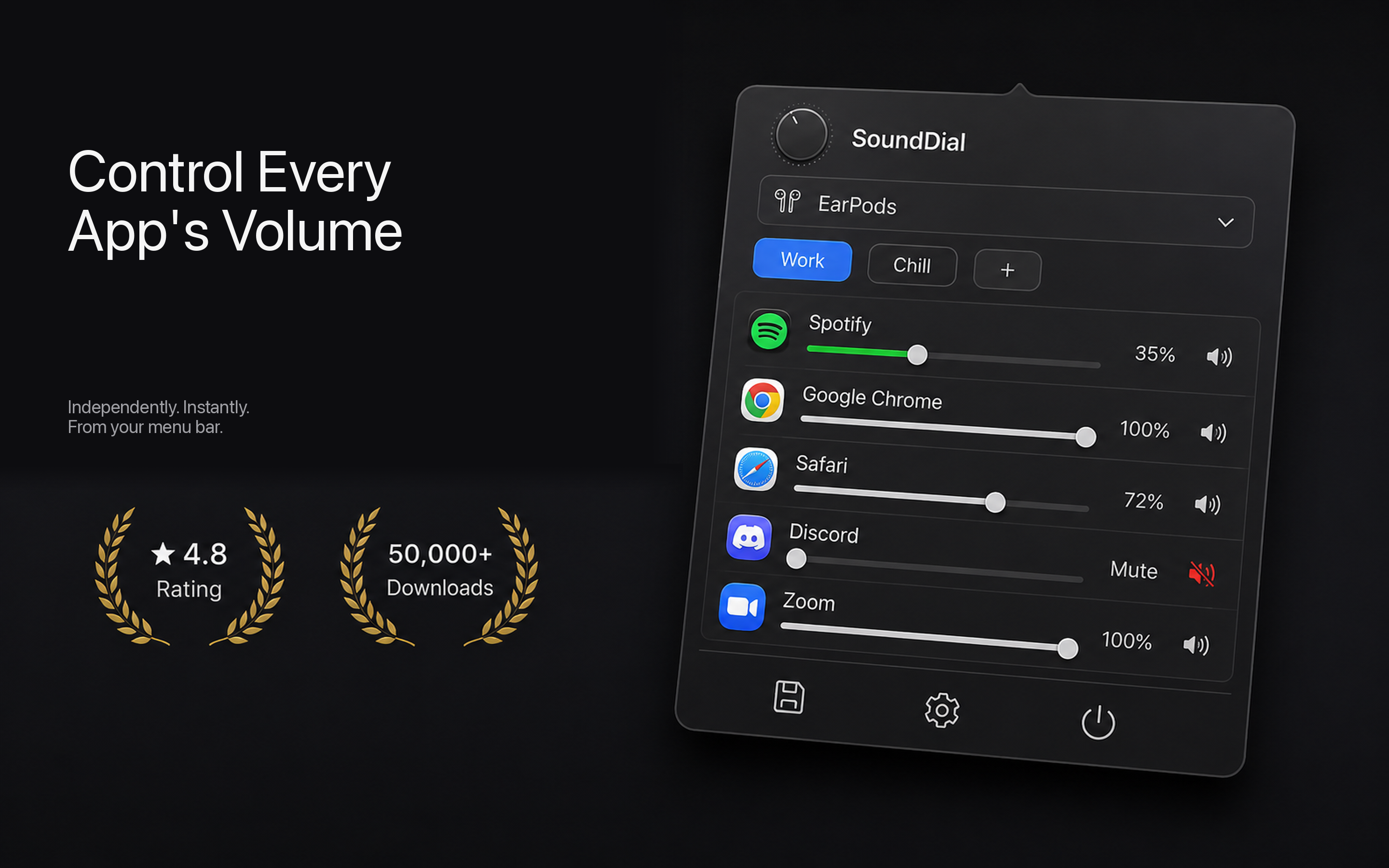
To be clear: a dead speaker channel is not something a volume app fixes — the checks above are your path. That said, once your audio is healthy again, macOS still lacks something Windows has had for years: a real per-app volume mixer. If you found yourself digging through Sound settings because one app was blasting while another was too quiet, a menu-bar mixer like SoundDial lets you set independent volume, mute, and even boost per application without touching your system balance. It's a convenience tool for everyday mixing, not a repair for the problem in this article.
The short version
- Center the Balance slider — per output device.
- Test with headphones to isolate hardware.
- Run
sudo killall coreaudiod, then restart. - Try safe mode to catch driver conflicts.
- Reset NVRAM on Intel; install any Tahoe point release.
- Still dead in headphones? Run Apple Diagnostics and call Apple.
Once your speakers are back to normal, if juggling per-app volume is a daily annoyance, SoundDial adds the mixer macOS has always been missing — €14.99, one-time, sandboxed, no drivers.