macOS has no built-in per-app volume mixer, so your DAW and everything else share one system slider. To set your monitor level independently from browsers, Slack, and notifications, you need per-app volume control. A menu-bar mixer like SoundDial gives Logic, Ableton, and GarageBand their own volume, separate from system audio.
Why one volume slider ruins your monitoring
When you're producing, your DAW is only one of many things making sound. A reference track plays in a browser tab. Slack pings arrive. A YouTube tutorial runs on a second monitor. On Windows, the Volume Mixer lets you balance all of these independently. On macOS, Apple never shipped an equivalent — the volume keys and menu-bar slider move everything at once.
That creates a real problem for anyone mixing by ear. You dial in a comfortable monitoring level in Logic, then a notification blasts through at the same level and blows out your ears. Or you turn the system down to protect your hearing during a loud passage, and now your reference track is too quiet to compare against. Your monitoring reference is no longer stable, and stable reference is the whole point of mixing.
Monitoring at a consistent level is one of the few habits that measurably improves your mixes. If system sounds keep forcing you to move the master slider, you lose that consistency.
What "separate DAW volume" actually means
There are two different things producers conflate here, and it's worth separating them:
- Interface / master output level — the hardware knob on your audio interface or your monitor controller. This sets your absolute listening loudness and should stay put once calibrated.
- Per-app software volume — how loud each application is before it reaches that output. This is what macOS is missing. It lets you keep the DAW at unity while turning Chrome, Music, or notification sounds down to a bed level underneath it.
You want the second one. The goal isn't to turn your DAW down — it's to turn everything else down relative to it, so the DAW stays your loudest, most consistent source and distractions sit quietly in the background.
How to do it with a per-app mixer
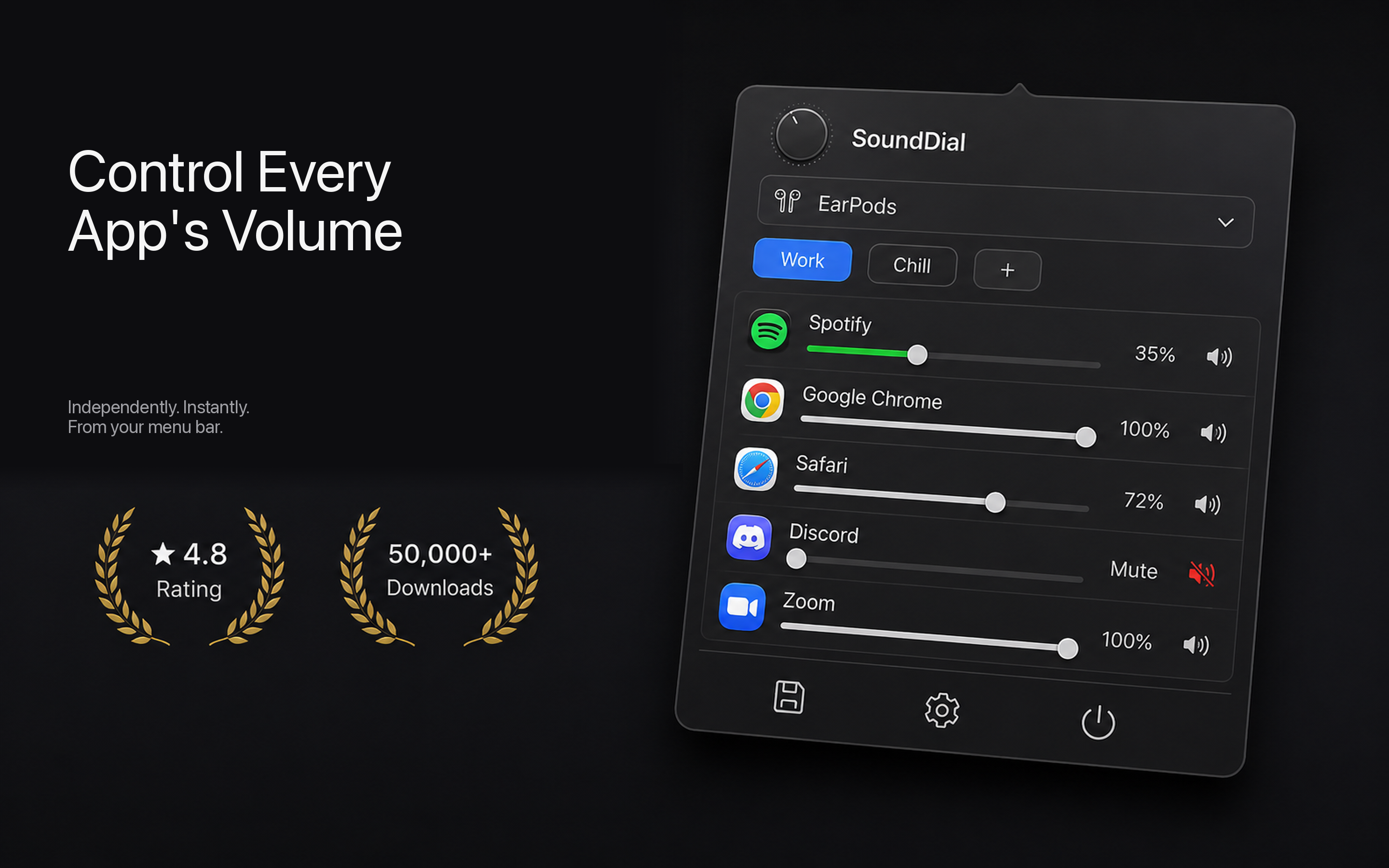
A menu-bar mixer such as SoundDial lists every app currently playing audio and gives each its own slider. The workflow for a producer looks like this:
- Calibrate your interface once. Set your audio interface or monitor controller to a comfortable, repeatable reference level and leave it. This is your fixed anchor.
- Set your DAW to 100%. In the mixer, leave Logic, Ableton, or GarageBand at full software volume so it passes through at unity. Your DAW's own master fader still does the fine mixing.
- Pull everything else down. Drop Chrome, Safari, Music, and Slack to a lower level — say 40–60% — so reference tracks and messages sit under your mix instead of competing with it.
- Mute the noisy stuff. Per-app mute lets you silence a browser or a chat app entirely without touching your monitoring chain. One click, and your DAW keeps playing untouched.
Because the DAW's slider never moves, your monitoring reference stays rock solid across a whole session. You can crank a reference track for a quick A/B, then mute it, and your mix level hasn't shifted a decibel.
Boosting a quiet app instead of turning others down
Sometimes the problem runs the other way. A rough demo bounce, a voice memo, or a quiet reference plays back far below your session level. Turning your interface up to hear it means everything else is now too loud. Per-app volume boost lets you push a single quiet application above 100% so it matches your working level — without touching your calibrated output. It's the piece Windows' mixer never had and one of the more useful tools when you're auditioning material from outside your DAW.
Profiles for different session types
Your ideal balance isn't the same for every task. Tracking, mixing, and casual listening each want a different mix of app levels. Volume profiles let you save a setup and recall it instantly:
- Mixing: DAW at 100%, browser and Music low, chat muted.
- Reference listening: Music or streaming app up, DAW down.
- Calls / collaboration: conferencing app up, DAW pulled back so it doesn't bleed into the call.
Switching profiles beats hand-adjusting five sliders every time you change gears.
Auto-ducking and fast output switching
Two more things matter in a studio. Auto-ducking can automatically dip background apps when a priority source speaks or plays, so a call or important audio always cuts through. And quick output switching from the menu bar lets you jump between your interface, your monitors, and headphones without digging into System Settings — a constant task when you're checking a mix on different systems.
Why not a virtual audio driver?
Some routing tools solve this by installing a kernel-level virtual audio driver. Those are powerful but heavy: they can break after macOS updates, add latency, and require deep system permissions. SoundDial is sandboxed and ships through the Mac App Store — no drivers, no DMG, no aggregate-device setup. For per-app level control specifically, that's a far simpler path than re-architecting your audio routing.
Ready to keep your monitoring level stable while everything else stays in its place? Get SoundDial on the Mac App Store for a one-time €14.99 and give your DAW its own volume.