macOS has no built-in way to mute individual apps, so to hear only one app you need a per-app volume mixer. Install SoundDial, open its menu-bar mixer, mute every app except the one you want to hear, and that app keeps playing while the rest go silent instantly.
Why macOS can't do this on its own
Windows has had the Volume Mixer for over a decade: right-click the speaker icon, and every running app gets its own slider. macOS has never shipped this. The volume keys on your Mac control one thing only, the master output level. When you turn the system down, everything goes down together. When you mute, everything mutes.
That is fine until you have five things making noise at once. You are on a video call, but a browser tab is autoplaying an ad, Spotify is still running, a game is pinging in the background, and Slack is chiming. Your only native options are to quit apps, mute them one by one inside each app's own settings (if it even has that option), or yank your headphones. None of that lets you say "keep this one, silence the rest."
The straightforward way: mute the rest with a mixer
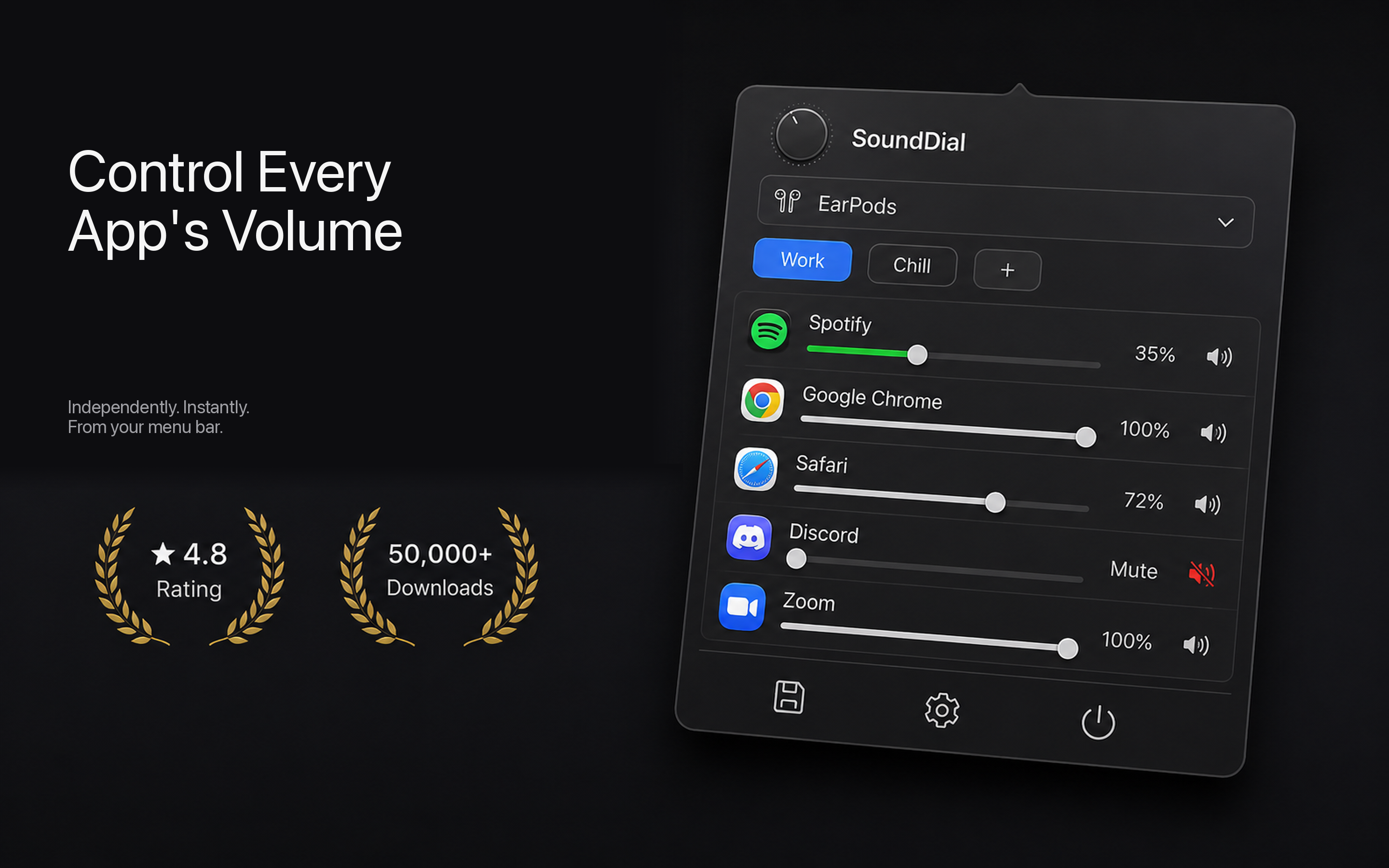
A per-app mixer sits between your apps and your output device and gives each app its own volume and mute control. Once you have one running, isolating a single app takes seconds:
- Open the mixer from your menu bar. You'll see a live list of every app currently producing audio.
- Find the one app you want to hear, your call, your stream, your game.
- Mute everything else. Tap the mute toggle next to each other app, or pull its slider to zero.
- That's it. The one app you left alone keeps playing at full volume while the rest stay silent.
With SoundDial, each app in the list has its own slider and its own mute button, so this is a handful of clicks. New apps that start playing later show up automatically, so if a notification sound tries to sneak in, you can silence it on the spot without touching your focused app.
The trick is that muting "everything except one" is just the inverse of muting one app. You're not silencing your Mac, you're silencing the noise around the thing you actually care about.
Save it as a profile so you don't redo it
If this is a setup you reach for often, doing it by hand every time gets old. Say you always want your call app loud and everything else off during meetings, or you want your stream front and center while games and browsers stay quiet. A volume profile stores those exact per-app settings and reapplies them in one click.
SoundDial lets you save profiles like "Meeting" or "Stream Only," then switch to them the instant you need them. Set it up once, and isolating your one app becomes a single menu-bar action instead of a five-slider chore.
The smarter version: auto-duck instead of hard-mute
Sometimes you don't want the other apps fully gone, you just want them to get out of the way when something more important starts. That's auto-ducking. When your priority app plays, background apps automatically drop to a low level, then rise back up when it stops.
This is ideal for calls and streams. When someone starts talking, your music dips so you can hear them, and when the call ends, the music comes back up on its own. You get the "hear one app clearly" outcome without manually muting and unmuting every time the situation changes. SoundDial includes auto-ducking alongside the manual mixer, so you can choose hard mute for total silence or ducking for a softer background.
Boosting the one app you kept
There's a bonus to isolating a single app: you can also make it louder than your Mac normally allows. Some apps, especially quiet video calls or poorly mastered streams, are barely audible even at max volume. A per-app boost pushes an individual app above 100% without cranking your system output, which would just amplify the apps you already muted.
So the full move is: mute the noise, keep your one app, and if that app is too quiet, boost it. SoundDial handles all three in the same mixer window.
What you're not signing up for
A common worry with Mac audio tools is that they require kernel extensions, virtual audio drivers, or shady installers downloaded from a random website. That's a legitimate concern, and it's why some people avoid these apps entirely.
SoundDial is on the Mac App Store, sandboxed, and installs like any normal app, no drivers, no DMG, no system extensions to approve. It's a one-time €14.99 purchase rather than a subscription, so you pay once and keep it. That matters for something you'll leave running in your menu bar all day.
Quick recap
- macOS has no native per-app volume control, so you need a mixer to do this.
- Open the mixer, keep your one app, mute or zero out everything else.
- Save it as a profile for calls or streams you do often.
- Use auto-ducking if you want background apps quieted rather than killed.
- Boost your kept app if it's too quiet on its own.
Want to hear only what matters and silence the rest? Get SoundDial on the Mac App Store and set up your first mute-everything-else profile in under a minute.