macOS actually remembers a separate system volume for each output device, but it forgets your app-level balance every time you switch. So headphones and speakers keep their own overall level, yet the moment you unplug, one app blasts and another vanishes. The fix is per-app volume memory that survives device switches, which macOS has no native tool for.
What macOS remembers and what it doesn't
There's a common belief that macOS treats every output device identically. It doesn't. Each output device stores its own system volume. Set your MacBook speakers to 30% and your AirPods to 80%, and macOS keeps those two numbers separate. Plug in, unplug, reconnect, and each device returns to where you left it.
So why does the experience still feel broken? Because that memory stops at the single, global slider. macOS has exactly one volume control for everything playing on a given device. It does not remember how loud individual apps were. When you switch from speakers to headphones, the balance between Spotify, a Zoom call, and a YouTube tab is not preserved, because that balance never existed. Every app shares the same slider.
The result is the frustration people describe as "different volume for speakers vs headphones." What they usually want is not just a different master level per device, but a remembered mix: quiet music, loud calls, notifications turned down, and that mix intact whether they're on desk speakers or headphones.
The manual workarounds and where they fall short
You can get partway there with built-in tools, and it's worth knowing the ceiling before reaching for anything else.
- Set each device's system volume once. Play audio through your speakers, set the level, then switch output to headphones and set that level. macOS retains both. This handles master volume per device but nothing per app.
- Use per-app volume where the app offers it. Spotify, VLC, and most browsers have their own internal volume. You can trim a loud app inside the app itself. The catch: this setting lives in the app, not the device, so it doesn't change when you switch to headphones, and most apps (Slack, Zoom, system notifications, Mail) have no such control at all.
- Switch output from Control Center or the menu bar. Option-click the volume icon in the menu bar to jump between devices quickly. Fast, but it only moves the master level around, it doesn't restore a per-app mix.
These get you a per-device master volume. What none of them give you is a remembered, per-app balance that follows you across devices. That gap is exactly where the annoyance lives, and it's structural: the OS simply has no per-app mixer, unlike Windows, which has shipped one for years.
Per-app volume memory, and why device switching is the real problem
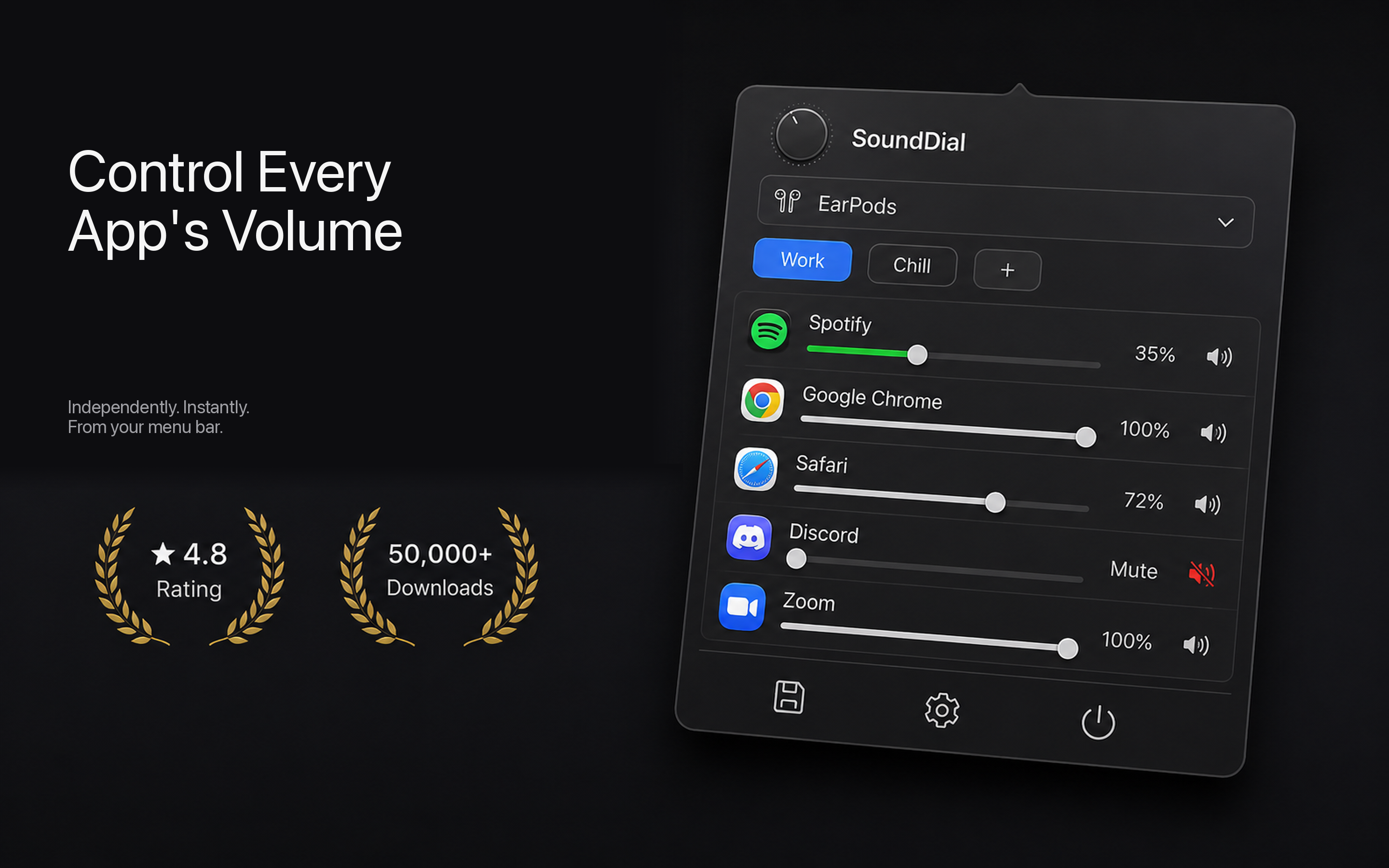
The deeper fix is to give each app its own volume and have those settings persist. That's what a per-app mixer like SoundDial is built for. It sits in your menu bar, lists every app currently producing sound, and gives each one an independent slider, a mute toggle, and even a boost past 100% for quiet apps.
The part that matters for the speakers-vs-headphones problem: those levels are remembered. Set your music to 40%, your calls to 90%, and a chatty app to muted, and SoundDial keeps that mix. When you unplug your headphones and fall back to speakers, you're not re-balancing three apps by hand every time.
Volume profiles take this further. You can save a named set of per-app levels and recall it in one click, so a "headphones, focused work" mix and a "speakers, meetings" mix are each a single selection rather than a manual reset.
The mental shift: stop thinking about one master slider you keep dragging, and start thinking about a saved mix per situation. Device switching stops being a re-balancing chore.
Quick output switching without losing your mix
Switching devices should be fast and non-destructive. From the same menu-bar panel you can change your output device, so moving from speakers to headphones is one click, and your per-app levels come along instead of collapsing back to a single global number.
A related feature worth mentioning is auto-ducking: when audio comes in on your microphone (you start talking, or a call begins), other apps automatically dip so you can be heard, then return to their set level afterward. It's the same principle applied to attention rather than devices, another thing macOS won't do on its own.
How to set it up
- Install SoundDial from the Mac App Store. It's sandboxed, so there's no driver, no DMG, and no kernel extension to approve.
- Play audio in the apps you use most so they appear in the mixer.
- Set each app's level, mute anything you don't want, and boost anything too quiet.
- Save that arrangement as a profile, for example one tuned for headphones and one for speakers.
- When you switch devices, recall the matching profile, or just let your saved per-app levels carry over.
The honest summary: macOS does remember volume per output device at the master level, but it will never remember your per-app mix, because it has no per-app mixer. If your real goal is a consistent balance between music, calls, and notifications that survives every switch between speakers and headphones, you need per-app memory on top of the OS.
Want speakers and headphones to keep their own mix without re-adjusting every app? Get SoundDial on the Mac App Store for a one-time €14.99, no subscription, no drivers.