If your Mac volume keeps resetting itself since macOS Tahoe, the fix is to eliminate the automatic adjusters: disable audio ducking and "Play sound on startup," reset the sound settings, and reconnect any Bluetooth output cleanly. For per-app levels that jump around, lock a fixed volume per app with a mixer so it never drifts again.
Why your volume changes on its own after Tahoe
A volume that moves without you touching it feels like a hardware fault, but it's almost always software deciding your level for you. macOS has several automatic behaviors that quietly nudge or reset output, and Tahoe's audio-stack changes made a few of them more noticeable. Before you assume the app or the Mac is broken, it helps to know exactly which system is grabbing the slider.
- Audio ducking: macOS lowers other audio when it thinks something more important is playing (Siri, accessibility announcements, notifications). After the trigger ends, the level sometimes doesn't come all the way back.
- Bluetooth handshake resets: AirPods and other Bluetooth devices renegotiate volume on connect. Reconnecting mid-session can snap output to a default or to a much louder/quieter level.
- Output device switching: When you unplug headphones, dock, or switch to a monitor's speakers, each output remembers its own volume. Switching back and forth looks like "random" resets.
- Per-app defaults: Some apps (browsers, video players, conferencing tools) set their own gain on launch or when a new stream starts, overriding whatever you had.
- Startup sound and login state: The boot chime and login can push system volume back toward a default level you didn't choose.
Fix the built-in causes first
Work through these in order. Most "resets itself" complaints disappear once ducking and Bluetooth are ruled out.
- Turn off the startup sound. System Settings → Sound → uncheck Play sound on startup. This stops the boot chime from resetting your baseline level.
- Reduce or disable ducking triggers. In System Settings → Accessibility → Spoken Content and Siri, turn off spoken announcements you don't need. Fewer triggers means fewer moments where macOS lowers audio and forgets to restore it.
- Re-pair problem Bluetooth devices. Remove AirPods or headphones from Bluetooth settings and pair them fresh. A stale profile is a common cause of volume snapping on connect.
- Set each output device deliberately. Connect each output you use (built-in, monitor, headphones) and set its volume once. macOS stores volume per device, so setting them all removes the surprise when you switch.
- Reset Core Audio if it's stuck. Open Terminal and run
sudo killall coreaudiod. This restarts the audio daemon without a reboot and clears a hung state that can cause erratic levels. - Update, then restart. Early Tahoe point releases shipped audio fixes. Make sure you're on the latest build and reboot once after updating.
If the resets stop, one of the above was your culprit. If your system volume is stable but individual apps keep drifting louder or quieter than everything else, you've hit the limit of what the built-in controls can do.
The real gap: macOS can't lock volume per app
Here's the frustrating part. Windows has had a per-app volume mixer for years — you open it, drag one app's slider, and it stays there. macOS has never shipped one. There is exactly one system volume slider, and every app fights over it. So when a browser tab blasts an autoplay ad or a video call comes in twice as loud as your music, your only option is to ride the master volume manually — which is the very "why does this keep changing" loop you're trying to escape.
The system slider is a single shared dial. Without a per-app mixer, "set it and forget it" is impossible on stock macOS — something will always override you.
Lock a fixed volume per app with SoundDial
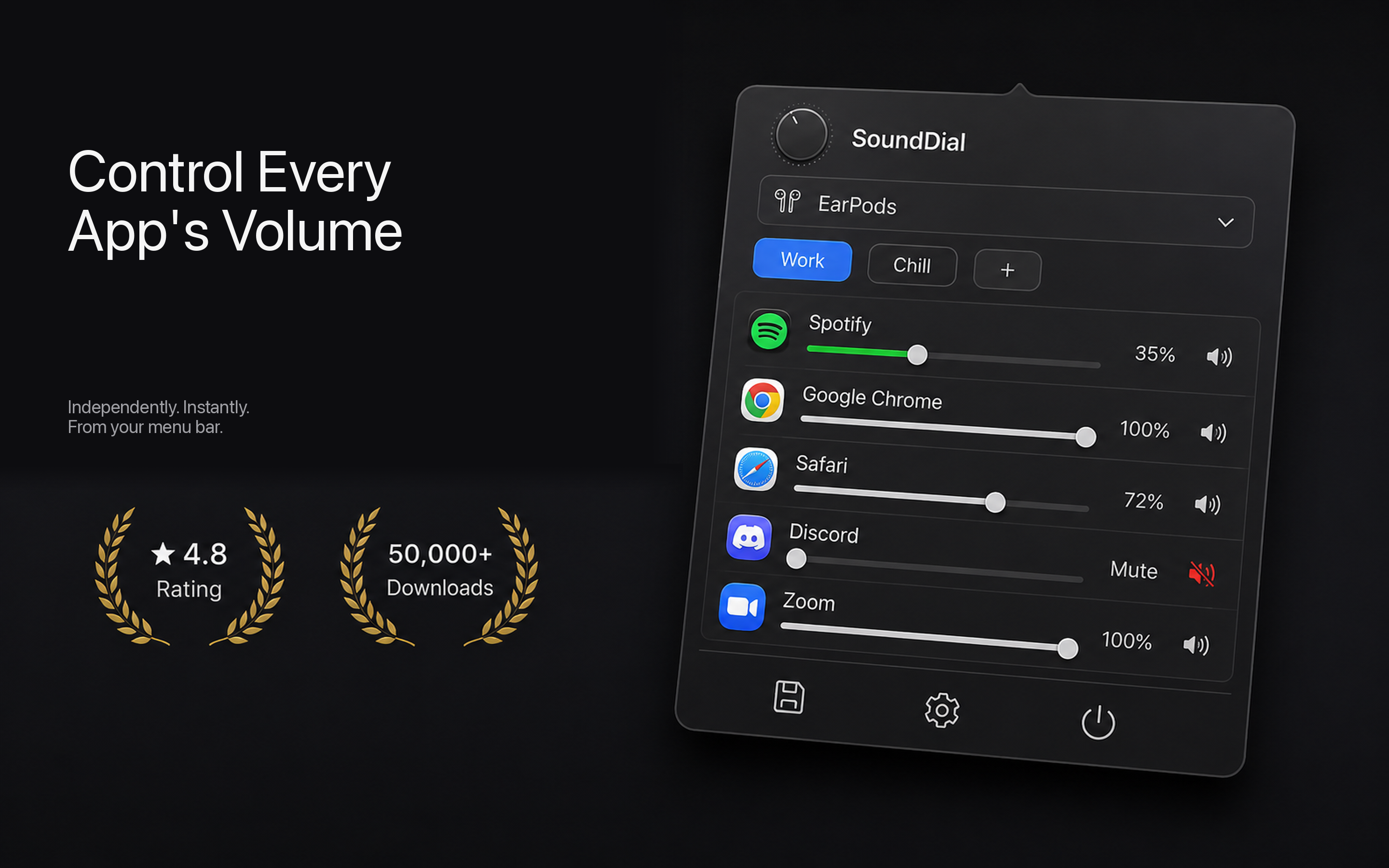
SoundDial adds the per-app mixer macOS is missing. It lives in your menu bar and gives every running app its own volume slider, independent of the master. Because it remembers the level you set for each app, it directly solves the "resets itself" problem: you decide once, and that app opens at that volume every time.
- Independent volume per app: keep music at 40% and a video call at 80% at the same time, with no master-slider juggling.
- Per-app mute and boost: silence a noisy app instantly, or push a too-quiet app past 100% when its own audio is weak.
- Volume profiles: save setups for "work," "gaming," or "focus" and switch the whole mix in one click.
- Auto-ducking on your terms: lower background apps automatically when you speak or when a chosen app is active — instead of macOS deciding.
- Quick output switching: jump between speakers, headphones, and monitor audio from the menu bar without diving into settings.
It's a €14.99 one-time purchase from the Mac App Store — no subscription, no drivers, no DMG, and no kernel extensions. Because it's fully sandboxed and App Store-distributed, you're not installing a legacy audio kext that Tahoe might block on the next update. SoundDial sets your levels using supported APIs, so your remembered volumes survive updates and reboots.
Which approach do you actually need?
If your whole system volume jumps, start with the built-in fixes above — ducking, Bluetooth, and the startup sound account for most cases. If instead the problem is that one app is always the odd one out, or you're tired of the master slider being a compromise, a per-app mixer is the only real answer. macOS won't add one, so a menu-bar tool is the practical route to a mix that genuinely stays where you put it.
Tired of chasing the volume slider on Tahoe? Get SoundDial on the Mac App Store and lock a remembered volume for every app — €14.99 once, no subscriptions, no drivers.