Crackling and popping after updating to macOS Tahoe 26 is almost always a sample-rate mismatch, a flaky Bluetooth codec negotiation, or a stuck CoreAudio process. Fix it by matching the output sample rate in Audio MIDI Setup, resetting coreaudiod, forgetting and re-pairing Bluetooth headphones, and quitting audio plug-in hosts. Work through them in order below.
Start with the cheap fixes
Before you touch anything technical, rule out the two things that resolve most cases in under a minute:
- Restart the Mac. A Tahoe update leaves audio daemons in a half-migrated state surprisingly often. A clean reboot reloads CoreAudio from scratch and clears the majority of post-update crackling.
- Unplug and replug the output device. If it's a USB DAC, dock, or audio interface, disconnect it, wait a few seconds, and reconnect. Try a different USB port too, ideally one directly on the Mac rather than through a hub. Hubs and displays that pass audio are a common source of pops.
If the noise survives a reboot, it's a configuration problem, not a glitch. Keep going.
Match the sample rate (the most common cause)
The classic Tahoe crackle comes from a sample-rate mismatch between what your device wants and what macOS is sending. When an app plays 44.1 kHz audio and the system is locked to 48 kHz (or vice versa), the resampling can stutter or pop.
- Open Audio MIDI Setup (in Applications → Utilities, or search Spotlight).
- Select your output device in the left sidebar.
- Look at the Format dropdown. Try setting it to 48000.0 Hz, 2ch-24bit Integer and test.
- If popping continues, switch to 44100.0 Hz and test again.
- For interfaces, make sure the sample rate matches your DAW's project rate.
Toggling the format also forces CoreAudio to renegotiate the connection, which alone fixes many cases even when you land back on the same value.
Reset CoreAudio
CoreAudio runs as a background daemon called coreaudiod. After a major macOS update it can hold onto stale device state. Restarting it is safe and takes effect instantly, without a reboot.
Open Terminal and run:
sudo killall coreaudiod
Enter your password when prompted. Your audio will cut out for a second, then the daemon relaunches automatically with a clean slate. This is the single most effective fix for crackling that appears out of nowhere on a machine that was fine before the update.
Check your Bluetooth headphones and codec
If the crackling only happens on AirPods or other Bluetooth headphones, the problem is usually codec negotiation, not your speakers. Wireless audio quality degrades when the connection is congested or when macOS drops into a low-bandwidth call mode.
- Forget and re-pair the device. Go to System Settings → Bluetooth, remove the headphones, then pair them again. This resets the negotiated codec.
- Watch for the call-mode drop. When an app opens the microphone, macOS switches Bluetooth headsets to a low-quality two-way profile, which sounds crunchy. Quit conferencing and voice apps you aren't using and the fidelity returns.
- Reduce interference. Move away from crowded 2.4 GHz environments and disconnect Bluetooth devices you don't need. A busy radio band produces intermittent pops.
- Turn off the mic input in an app's settings if you only need to listen, so macOS keeps the high-quality playback profile.
Quit audio plug-in hosts and virtual drivers
Third-party audio software that installs a system extension or virtual device is a frequent offender after an OS jump, because kernel and audio extensions often need updating for a new macOS version. Suspects include virtual audio routers, equalizer apps, loopback tools, and older driver-based utilities.
- Quit any equalizer, audio-router, or loopback app and test whether the crackling stops.
- Check System Settings → General → Login Items & Extensions for audio extensions that may need an update or removal.
- Update those apps to their Tahoe-compatible releases, or uninstall the ones you no longer use. Stacked audio drivers frequently conflict with each other after a major update.
If quitting one of these apps silences the pops, you've found your culprit. Reinstall the current version or leave it off.
Narrow it down: system-wide or one app?
Figure out whether the noise happens everywhere or only in specific software. Play a local audio file, then a browser video, then a music app. If only one app crackles, the fix is that app's own audio settings or an update, not macOS. If it's system-wide, the steps above are where the answer lives.
When you're still stuck, boot into Safe Mode (hold the power button on Apple silicon, then choose your startup disk while holding Shift). Safe Mode loads no third-party extensions. If the audio is clean there, a login item or driver is the cause, and you can re-enable them one at a time to find it.
Once your audio is clean
Crackling is a driver and sample-rate problem, so the fixes above are what actually resolve it. But once playback is stable, you may notice a different limitation: macOS still has no built-in per-app volume mixer, the way Windows does. You can't turn a loud app down without turning everything down.
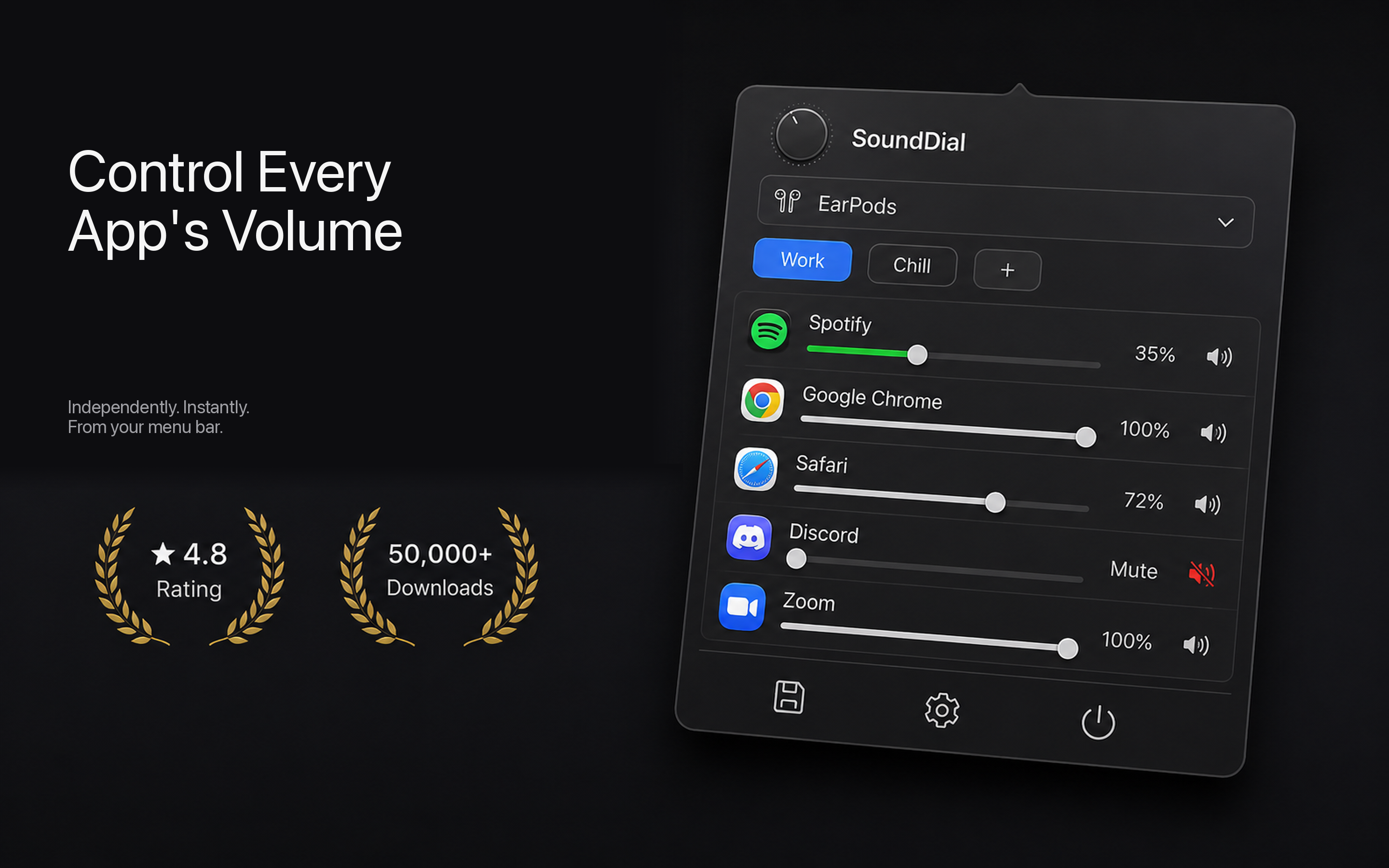
That's the gap SoundDial fills. It's a menu-bar mixer that gives each app its own volume slider, per-app mute, and even a volume boost for quiet apps, plus quick output switching. It won't fix crackling, but once your audio is healthy it makes daily control far easier.
Work through the steps above in order, and start with the reboot and the sample-rate check. If you later want real per-app control on your clean audio setup, SoundDial is a €14.99 one-time purchase on the Mac App Store, sandboxed with no drivers or DMG to install.